Use this guide to update a reader’s Asset in Device Manager.
You may need to update a reader’s Asset if the reader is moved to a different placement or use point within the same Location and Group, or if the current Asset needs to be corrected.
The Asset helps organize and manage reader data in Device Manager. It is the reader’s specific placement or use point within the selected Location and Group.
Need to update more than one setting? You can update the reader’s Location, Group, and Asset at the same time from the Edit Readers window before clicking Update.
TABLE OF CONTENTS
- Before you begin
- Sign into CI Solutions
- Select the reader
- Open the Edit Readers window
- Update the Asset or create a new Asset
- Save the changes
- Move the reader, if needed
- Confirm the reader's new Asset
1. Before you begin
Make sure you have:
- Your CI Solutions login credentials
- Access to a desktop computer
- Note: Reader settings cannot be updated on a mobile device.
- Access to Device Manager
- The serial number for the reader you want to update
- The serial number can be found on the label on the back of the reader.
- The new Asset information for the reader
- Physical access to the reader so it can be moved to its new placement, if needed
2. Sign in to CI Solutions
- Go to the CI Solutions login page on a desktop computer.
- Enter your credentials.
- Select Device Manager.
2. Select the reader
- Find the reader you want to update.
- Select the checkbox to the left of the reader number and status.
3. Open the Edit Readers window
- Click the pencil icon above the reader list.
- The Edit Readers window will open.
4. Update the Asset or create a new Asset
- Open the Asset dropdown.
- Select the specific placement or use point for the reader.
The Asset is the reader’s specific placement within the selected Location and Group.
For example:
- If the Group is Cafeteria, the Asset may be Lunch Line #1 or Lunch Line #2.
- If the Group is Campus Access, the Asset may be Front Gate or Side Gate.
- If the Group is Transportation, the Asset may be Bus 17.
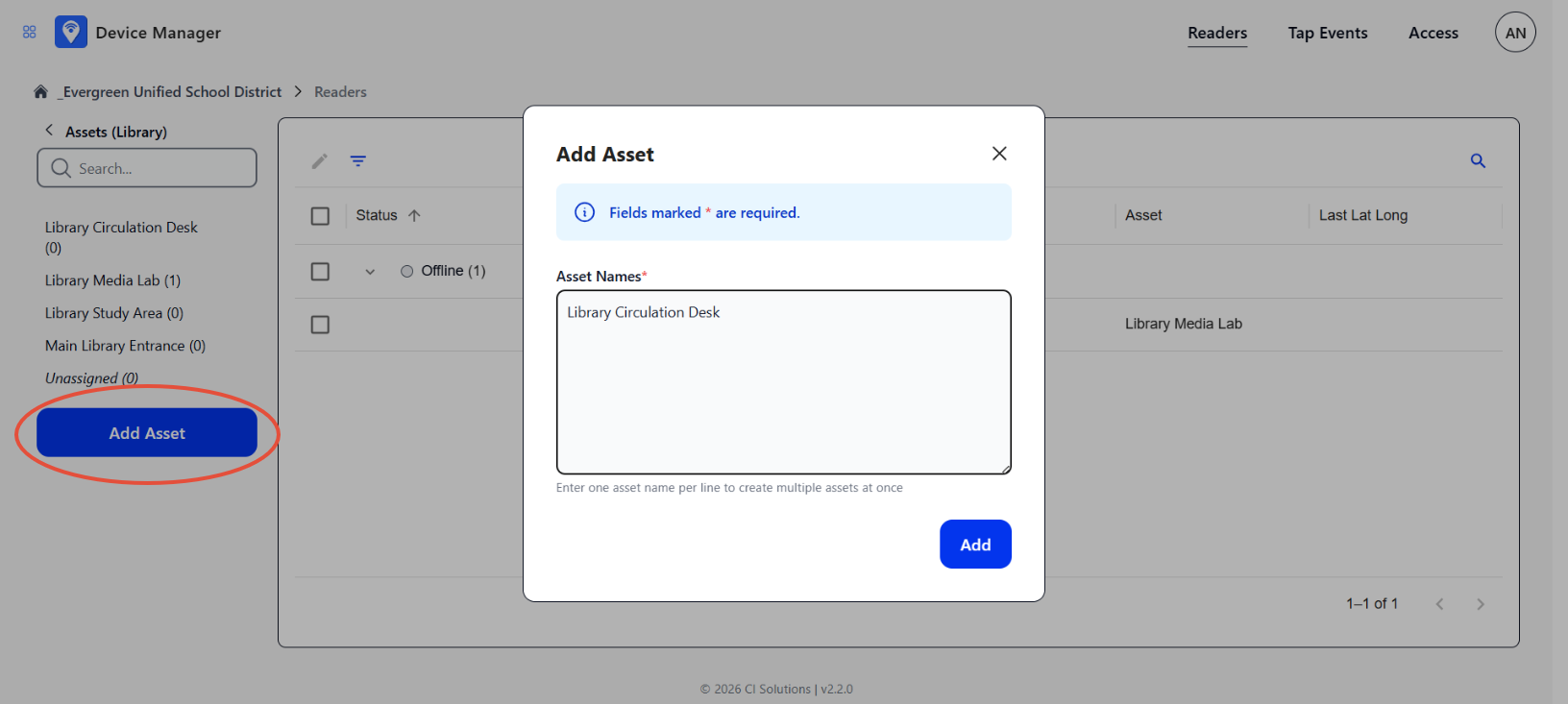
If the Asset you need is not listed, you can create it in Device Manager.
- Close the Edit Readers window.
- Click Add Asset.
- Enter the Asset name.
- Click Add.
- Return to the reader.
- Open the Edit Readers window again.
- Select the new Asset from the Asset dropdown.
5. Save the changes
- Confirm that the correct Asset is selected.
- If you also need to update the reader’s Location or Group, make those changes before saving.
- Click Update to save the changes.
6. Move the reader, if needed
After saving the updated Asset, physically move the reader to its new placement if it is not there already.
Once the reader is placed in its new position, connect it to power.
For additional installation instructions, see How to set up a reader in Device Manager.
7. Confirm the reader’s new Asset
After saving the changes and moving the reader, if applicable, confirm that the reader appears with the correct Asset in Device Manager.
- In the Locations list on the left side of the reader panel, select the reader’s assigned Location.
- Confirm that the reader appears in the reader panel.
- Confirm that the reader shows the correct Asset.
- If available, test the reader in its new placement using an approved ID card.
Asset update complete
The reader’s Asset is updated when it appears in Device Manager with the correct Asset assignment.
If the reader was physically moved, the update is complete when the reader is installed in its new placement and connected to power.
Was this article helpful?
That’s Great!
Thank you for your feedback
Sorry! We couldn't be helpful
Thank you for your feedback
Feedback sent
We appreciate your effort and will try to fix the article