This article explains what a Tap Event is, what information it may include, where Tap Events appear in Device Manager, and how district teams can use them to review CR-One reader activity.
It is intended for district administrators, technology teams, transportation teams, operations staff, and other authorized users who review CR-One activity in Device Manager.
TABLE OF CONTENTS
- What is a Tap Event?
- Where Tap Events Appear
- What Information Can a Tap Event Include?
- How Quickly Tap Events Appear
- Understanding Location, Group, and Asset Context
- How District Teams Can Use Tap Events
- Tap Events & Student Privacy
- Conclusion
What Is a Tap Event?
A Tap Event is a record of a specific student ID interaction at a CR-One reader.
A Tap Event is created when a student taps a physical ID card or uses a supported mobile credential at a designated reader. The event captures a snapshot of that interaction and connects it to the reader, time, and assigned touchpoint.
A Tap Event does not represent continuous student tracking. It only records the specific interaction that occurred at the reader.
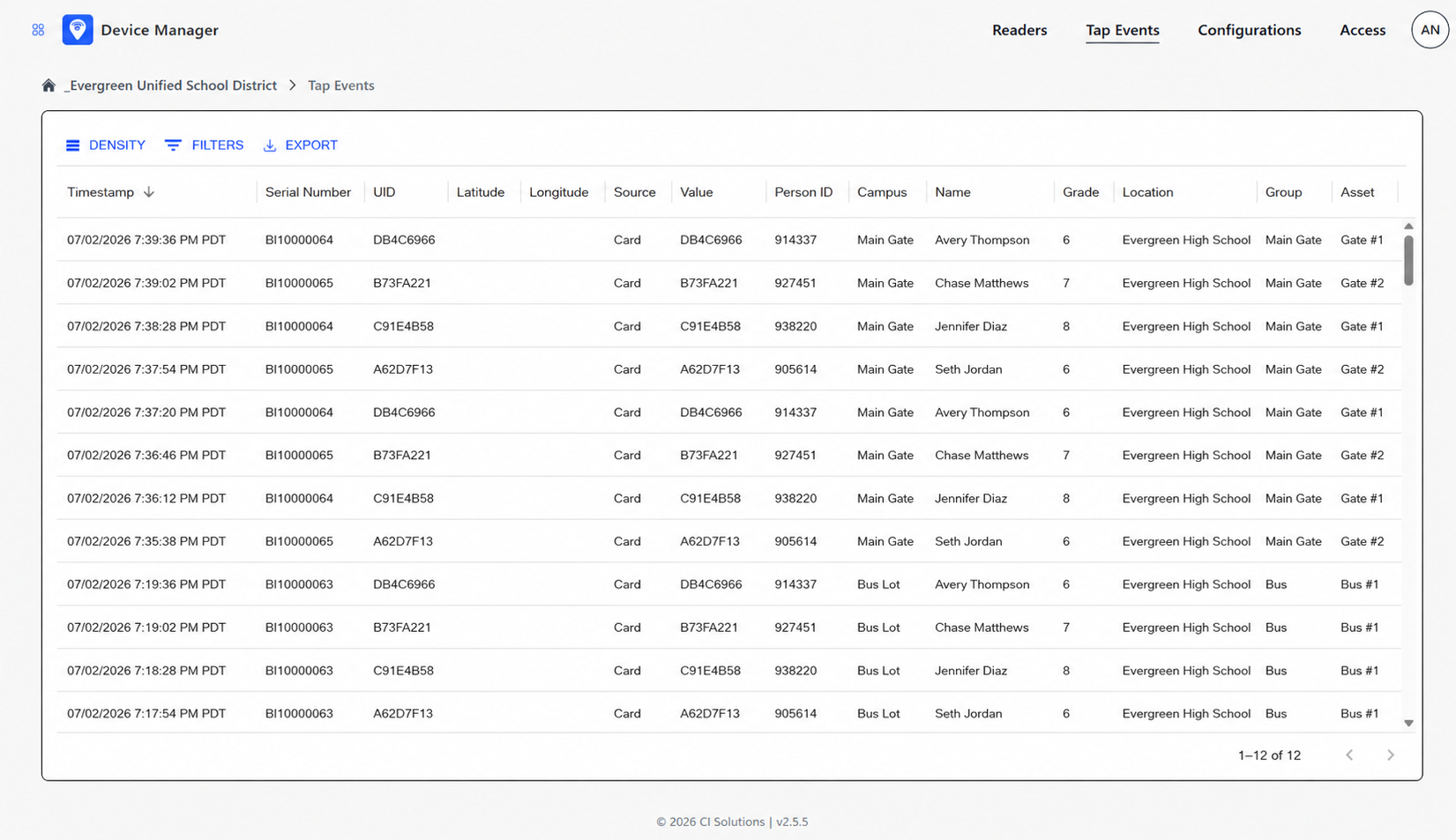
Where Tap Events Appear
Tap Events captured by CR-One can be viewed in Device Manager, where authorized users can review Tap Event activity, filter results, and view details connected to specific readers, Locations, Groups, or Assets.
What Information Can a Tap Event Include?
The details included in a Tap Event may vary depending on your district’s configuration.
A Tap Event may include:
- Credential value
- Reader serial number
- Time of interaction
- Assigned Location
- Assigned Group
- Assigned Asset
- GPS coordinates, when enabled
- Enriched student details, when enabled, such as name, person ID, or grade
How Quickly Tap Events Appear
Tap Event timing may depend on your district’s configuration, connectivity, and whether GPS is enabled.
In general:
- Tap Events may appear in near real time when the reader has connectivity and GPS is not enabled.
- When GPS is enabled, Tap Events may be batched and transmitted at a configured interval.
- Connectivity issues may delay when Tap Events appear in Device Manager.
Understanding Location, Group, and Asset Context
Tap Events are connected to the reader’s assigned settings in Device Manager.
These settings help explain where the interaction happened and what workflow the reader was supporting.
- Location refers to the campus, school, site, or building.
- Group refers to the workflow or service area, such as Transportation, Campus Access, Cafeteria, Library, or Events.
- Asset refers to the specific reader placement or use point, such as Bus #1, Main Gate, Lunch Line #1, or Library Desk.
Click here to learn more about Location, Group, and Asset settings in Device Manager.
How District Teams Can Use Tap Events
Tap Events can help authorized users:
- Confirm that a reader is capturing ID interactions
- Review activity by reader, Location, Group, or Asset
- Check whether a specific workflow is active
- Identify where Tap Event activity is higher or lower than expected
- Support troubleshooting when a reader, credential, or workflow is not behaving as expected
- Understand how student ID interactions are being used across supported workflows
Tap Events and Student Privacy
Tap Events are records of specific credential interactions at designated readers. They do not continuously monitor student movement.
A Tap Event is only created when a student uses a physical card or supported mobile credential at a reader. Districts control where readers are placed and which workflows they support.
Conclusion
Tap Events help district teams understand specific student ID interactions captured by CR-One readers. By reviewing Tap Events in Device Manager, authorized users can confirm reader activity, understand workflow usage, and troubleshoot supported ID-based interactions.
Was this article helpful?
That’s Great!
Thank you for your feedback
Sorry! We couldn't be helpful
Thank you for your feedback
Feedback sent
We appreciate your effort and will try to fix the article