If you are having trouble printing on New ID Print, here are some troubleshooting steps to try
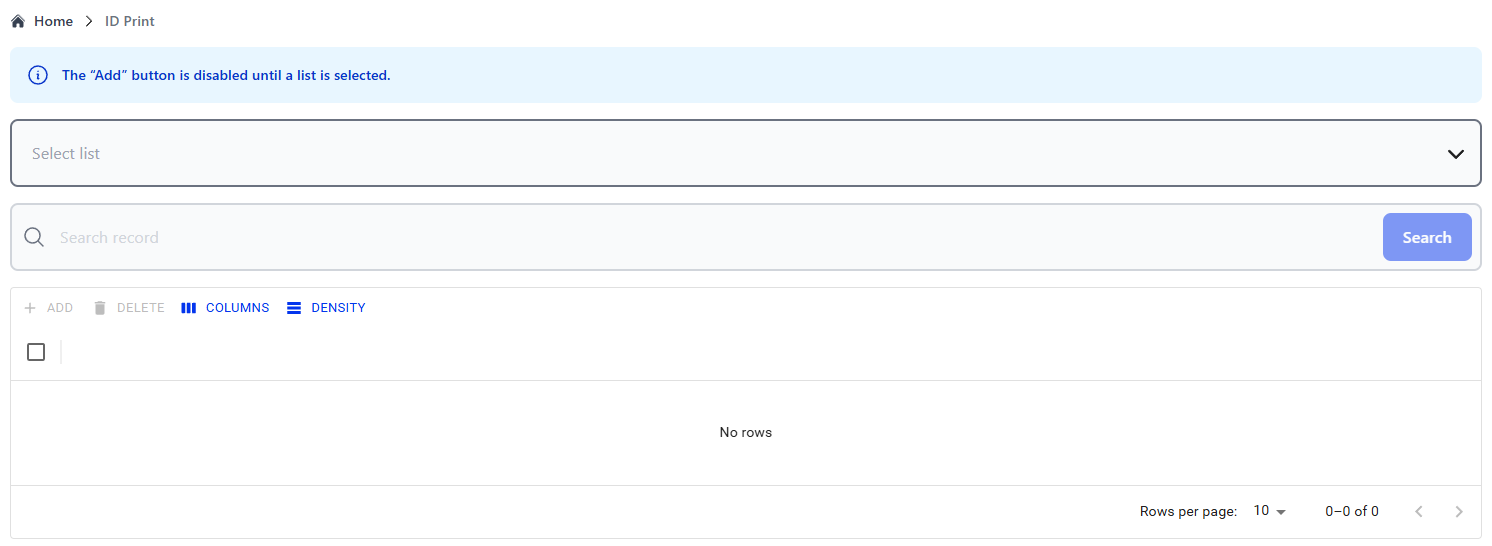
Unsure if you are on New ID Print? It should look like the below
Restart Printer
- Unplug both cables from the back of the printer
- Wait a few seconds before plugging the printer back in
- Wait for the printer to turn on
- Refresh the page and try printing again
Check The Printer by Testing it Outside of Badge
- Go to the Printers & Scanners on your computer
- This is in your settings, you can search for it in your Windows Search Bar
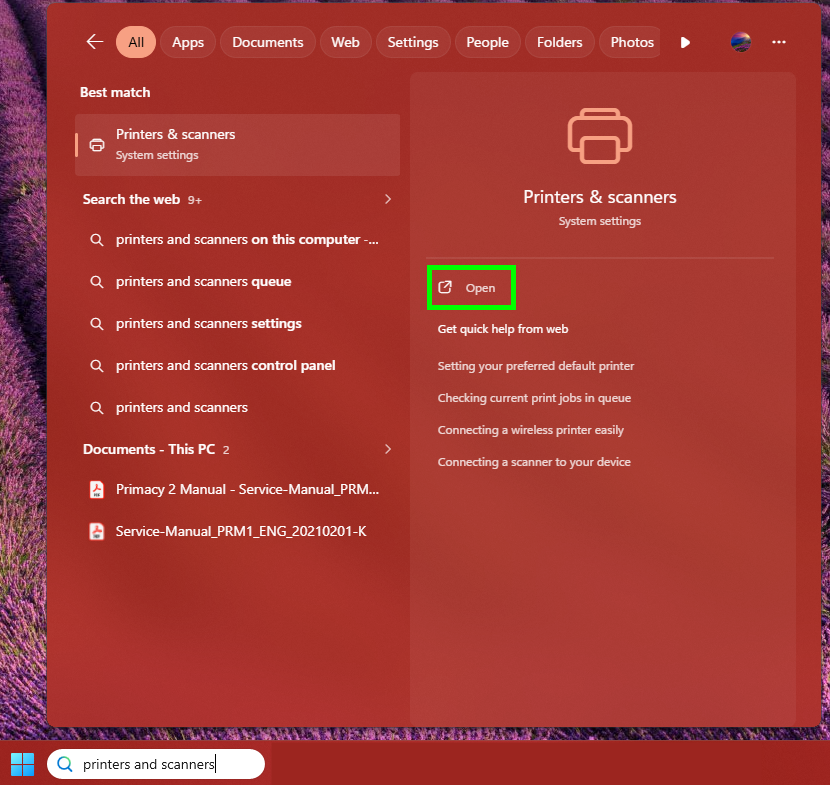
- This is in your settings, you can search for it in your Windows Search Bar
- Select your printer
- Select 'Print a Test Page'
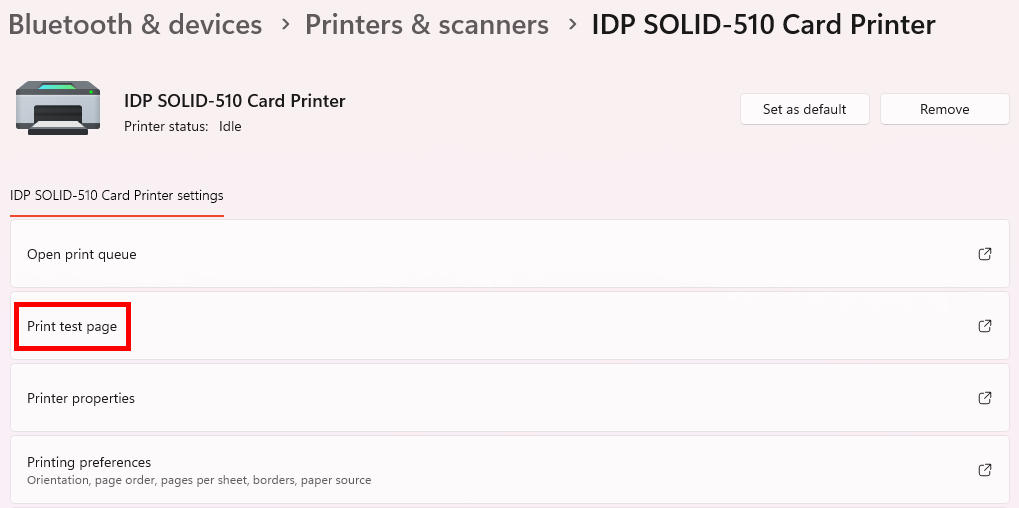
- If a page doesn't print, check the printer
- Verify the following
- No cards are stuck inside of the printer
- The ribbon is loaded in and not torn
- Cards are loaded in
- Does the printer's screen display an error message? Are any buttons flashing?
- Verify the following
- If a page prints, keep troubleshooting
Ensure USB Serial is set
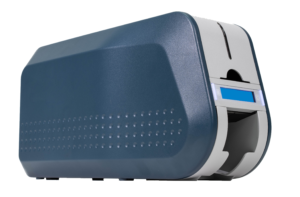
- If your printer is a CIX900 (pictured), ensure USB Serial is set: CIX900: Set USB Serial as Use
Try Another USB Port
- Try another USB port on your computer
- Ensure your printer is plugged directly into your computer
- If your printer is connected through a hub, switch, or USB extender, try plugging your printer in directly to the computer
Ensure the Print Service is running
- Go to Services
- You can search for it in your Window's Search Bar
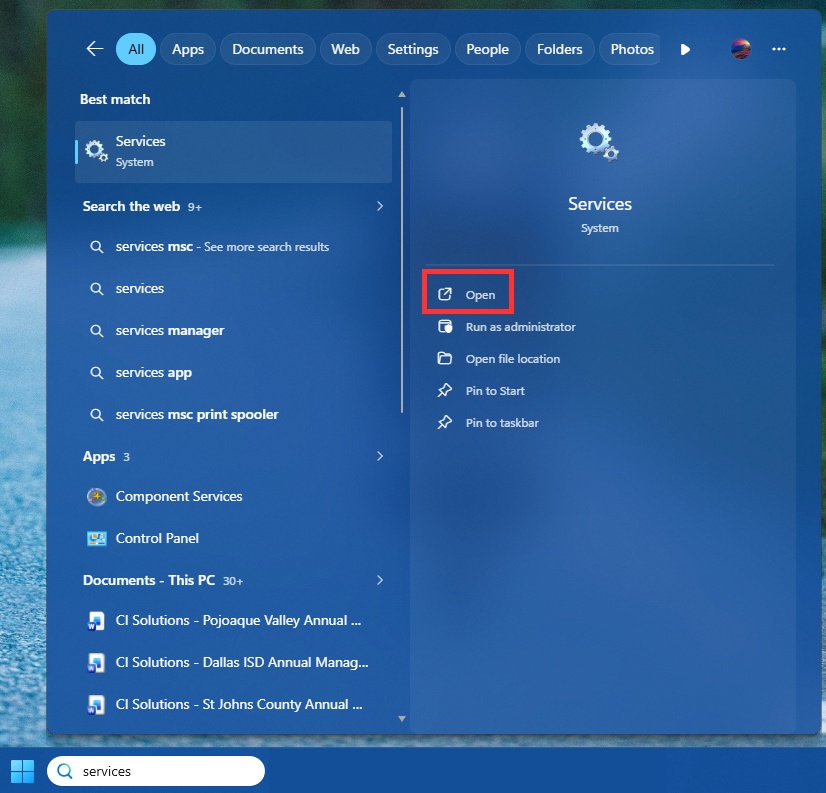
- You can search for it in your Window's Search Bar
- Search for the CI Solutions Print Service and confirm it is Running
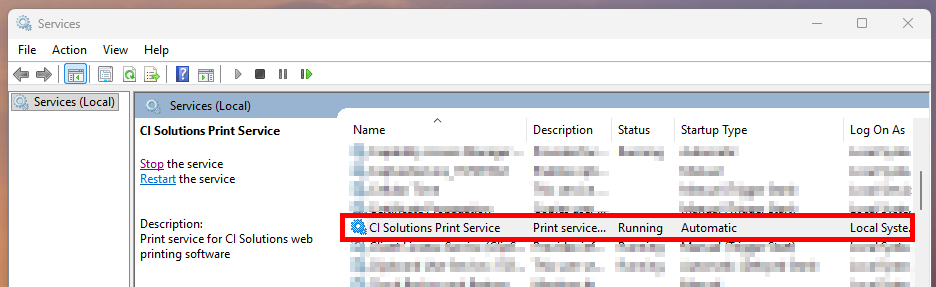
- If the service is not running, turn it on by clicking on the service then Start
- You might need an IT Admin to assist depending on your local security permissions
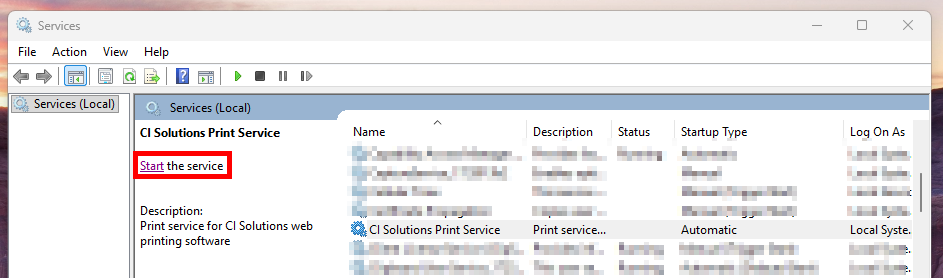
- You might need an IT Admin to assist depending on your local security permissions
Ensure Local Network Access is Enabled
- Log in to Badge
- Select the Site Permissions in the top right and ensure Local Network Access is enabled
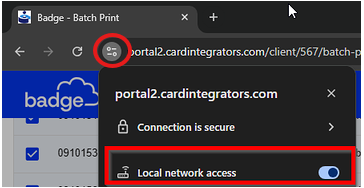
- If it is not enabled, please enable it per this article: ID Print: Print Service Not Found - Local Network Access error
Cancel any Stuck Jobs
- Log in to Badge and Enter ID Print
- Search for any record
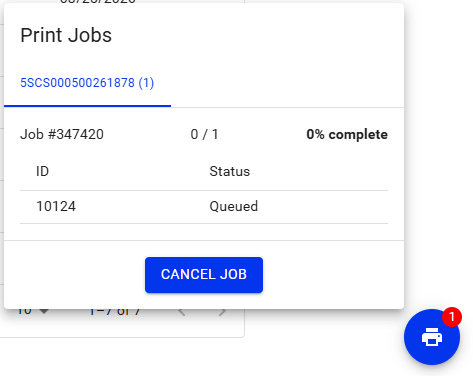
- If there is a job in the queue, a printer icon will appear in the bottom right corner of your screen
- Select the printer icon and 'Cancel Job'
- Try printing again
If you are still having issues, Submit a Ticket Here
Was this article helpful?
That’s Great!
Thank you for your feedback
Sorry! We couldn't be helpful
Thank you for your feedback
Feedback sent
We appreciate your effort and will try to fix the article