In ID Print, Badge users can take pictures through the computer's webcam
Take Pictures
- Ensure the subject is dressed in neutral colors without busy patterns, not wearing hats or sunglasses
- Ensure the background compliments and doesn't distract from the subject
0. Check if Badge has Permission to use the camera
You will need to refresh the page after giving permission to the camera
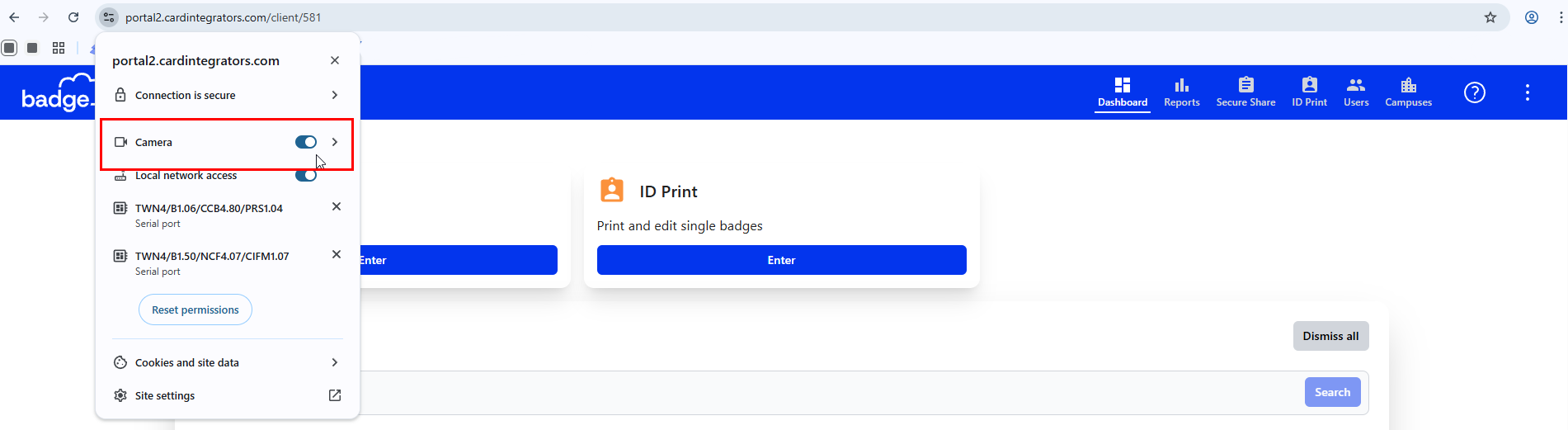
1. Click ENTER in the ID Print module

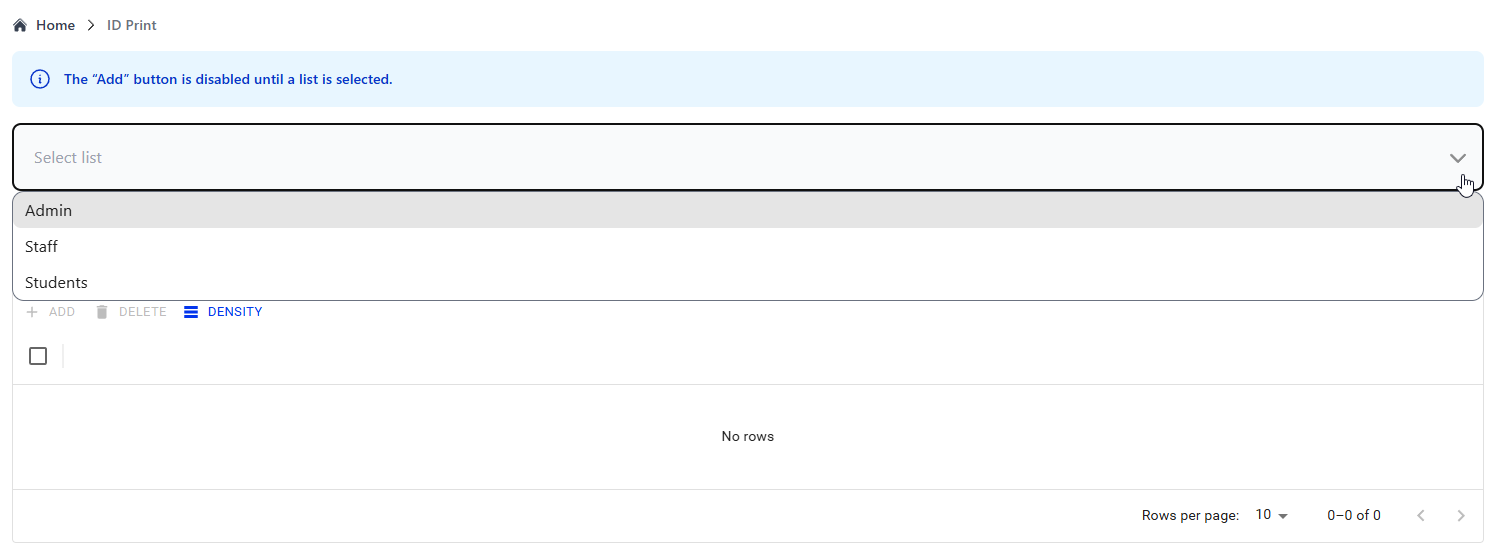
2. Click on the drop-down menu to Select a List (e.g., school, staff, district, office) you want to view
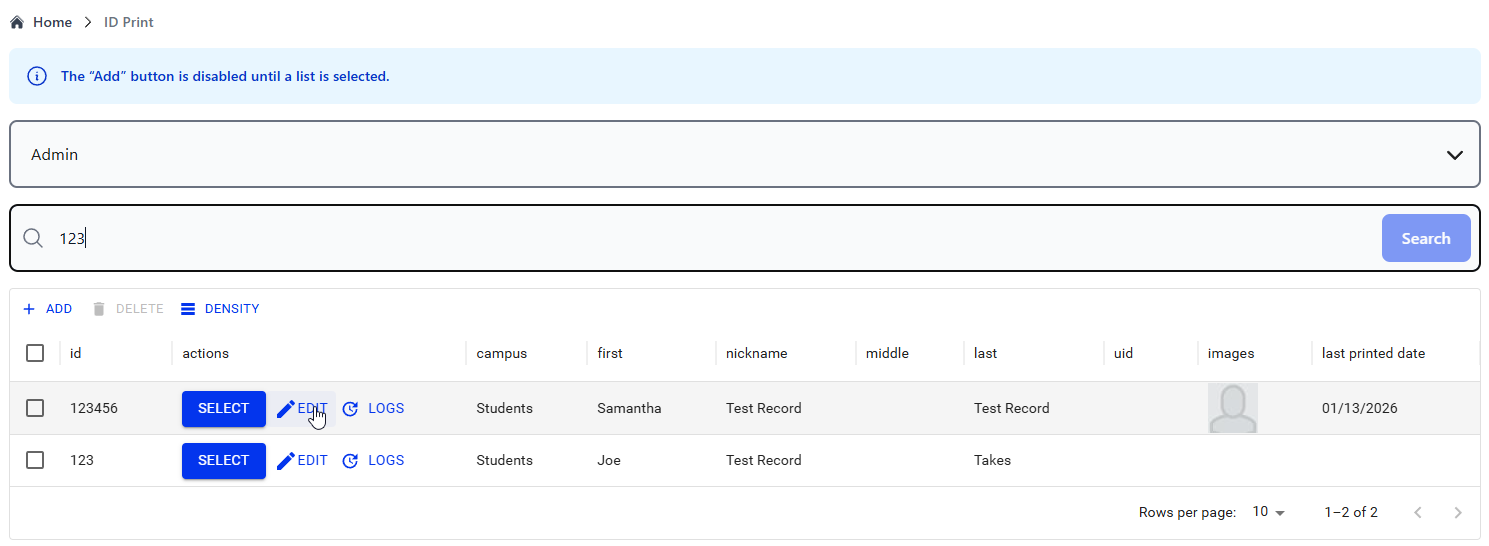
3. Find the record you want to take a picture for > Click Edit
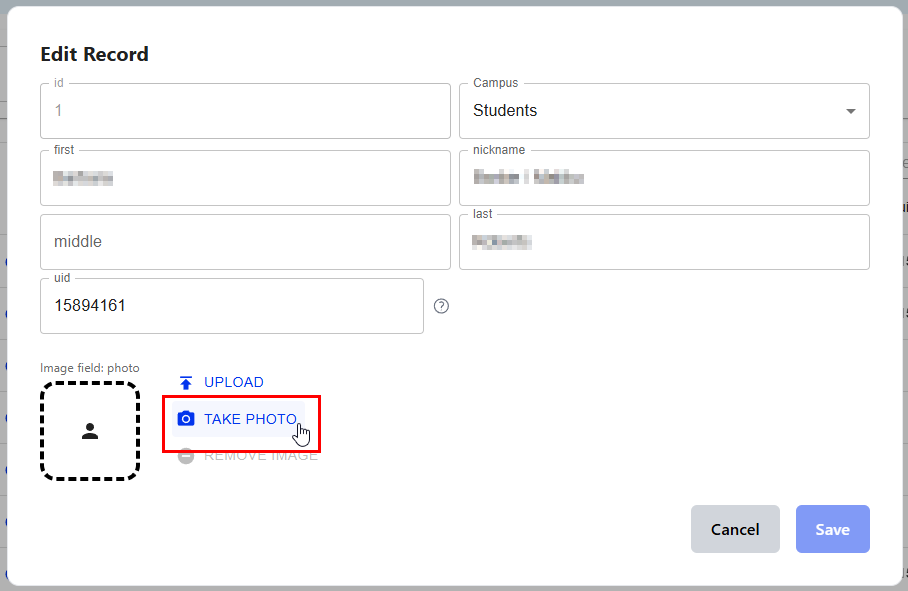
4. Click Take Photo
6. General photography tips:
- Position the subject's head slightly below the top frame.
- Position the subject's shoulders slightly above the bottom frame.
- Center the subject by positioning the subject's eyes between the top and
- middle frame.
- Ensure there is a full coverage of light removing any shadows on the subject.
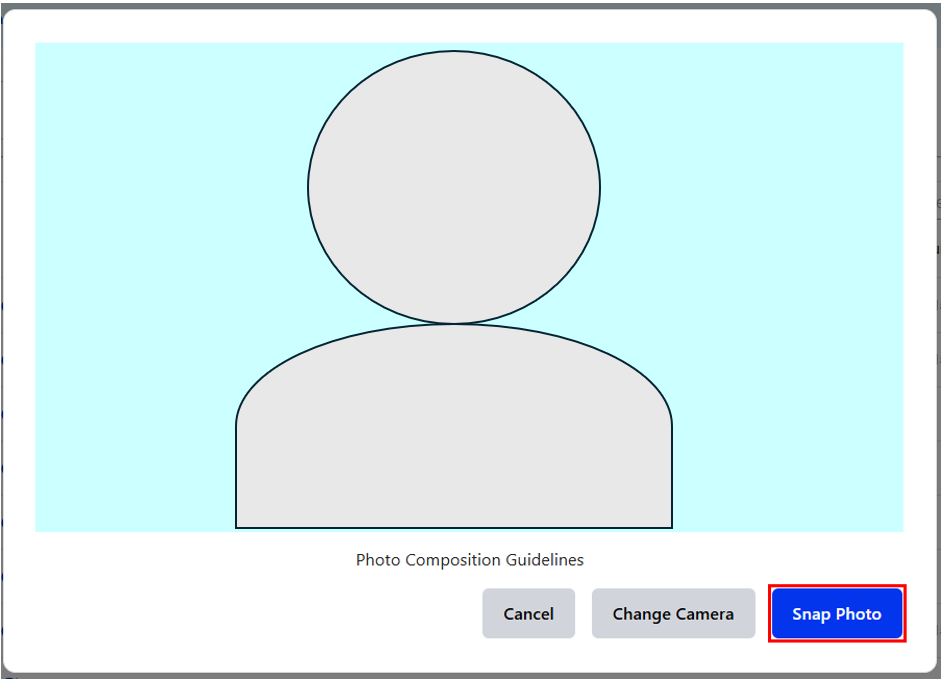
7. Click Snap Photo
Was this article helpful?
That’s Great!
Thank you for your feedback
Sorry! We couldn't be helpful
Thank you for your feedback
Feedback sent
We appreciate your effort and will try to fix the article