Note: This article is for those using New: ID Print, the new enhanced print environment
Overview
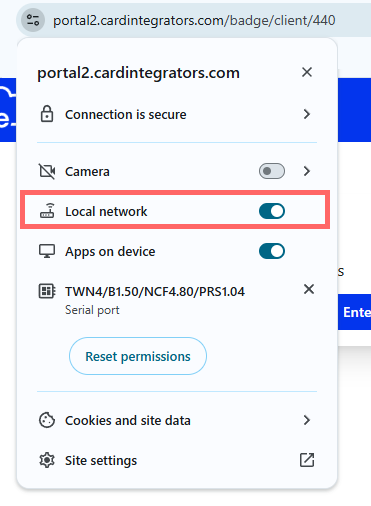
As part of Chrome release 142, Chrome will prompt Badge users for Local Network Access. This is a new security feature by Chrome to prevent cross-site request forgery attacks.
When signing in to Badge, Chrome will prompt a permission for Badge to be granted local network access. This allows Badge to interact with the Print Service on your device. This only needs to be permitted once.
For more information about Chrome 142 and local network access changes, see: Chrome Feature: Local network access restrictions
Goal
Prevent Chrome's Local Network Access permission prompt when using Badge
Configure
- The Allow List: LocalNetworkAccessAllowedForUrls
- Removes the Local Network Access prompt from specific websites (ie Badge at https://www.cardintegrators.com/)
- Simply put: pre-allows LNA on specific sites by never asking
- Global Switch: LocalNetworkAccessRestrictionsEnabled
- Ensures the allow list is enforced across all users
Option 1 - Configure Chrome using Google Workspace
Block Local Network Access prompt for users in the Google Admin Console
- In the Workspace Admin Console, go to Chrome Browser > Settings
- Find the Local Network Access restrictions setting
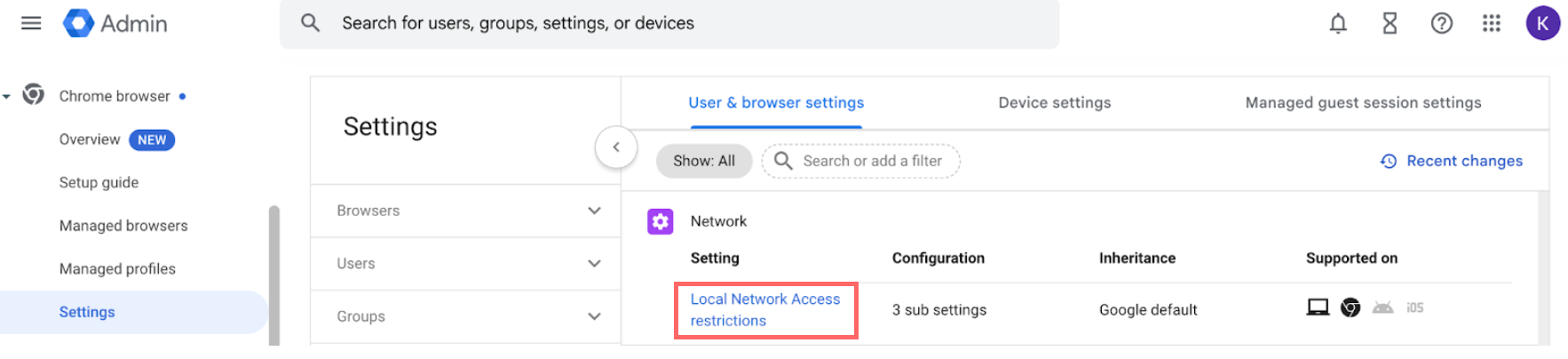
- Configure the setting so that Inheritance is Locally Applied
- Set the Configuration option to Apply restrictions to requests to Local Network Access. Add a URL pattern for each domain you wish to allowlist.
- In this case, the domain will be *.cardintegrators.com
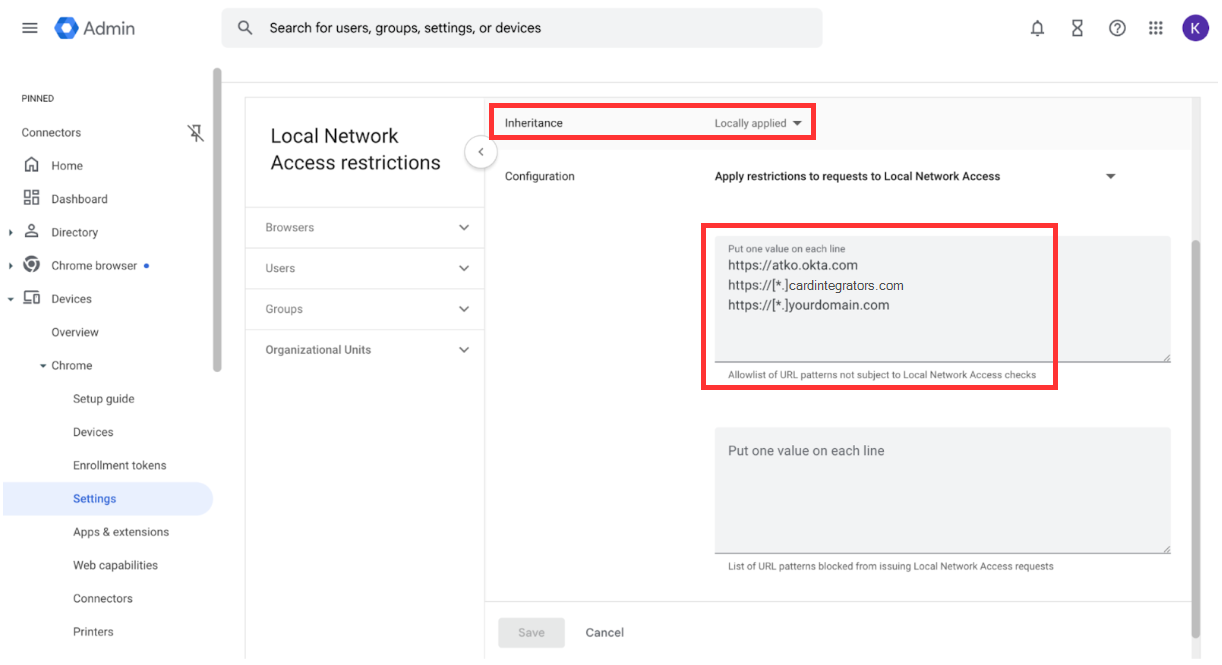
- In this case, the domain will be *.cardintegrators.com
- Assign the setting to your desired Organizational Unit and hit Save
- Open chrome://policy in your browser, then click Reload to confirm that the values are applied
Option 2 - Configure Chrome using Mobile Device Manager (MDM)
Windows
Use your Mobile Device Manager (MDM) to deploy a policy that pre-grants LNA permission for your cardintegrators URLS on managed devices. This prevents users from ever seeing the prompt. The configuration varies depending on operating system
Windows (via Intune)
- In the Intune console, create a custom device configuration profile
- Navigate to: Devices > Configuration > Create profile
- Platform: Windows 10 and later
- Profile type: Template
- Template name: Custom
- Navigate to: Devices > Configuration > Create profile
- Add OMA-URI rows
- Enter the LNA URI in the OMA URI property
- ./Device/Vendor/MSFT/Registry/HKLM/SOFTWARE/Policies/Google/Chrome/LocalNetworkAccessAllowedForUrls
- Enter the URL you want to allowlist in the Value property
- If you are entering more than one URL, create a unique row for each URL, and a number for the OMA-URI
- For example: /Device/Vendor/MSFT…LocalNetworkAccessAllowedForUrls/1
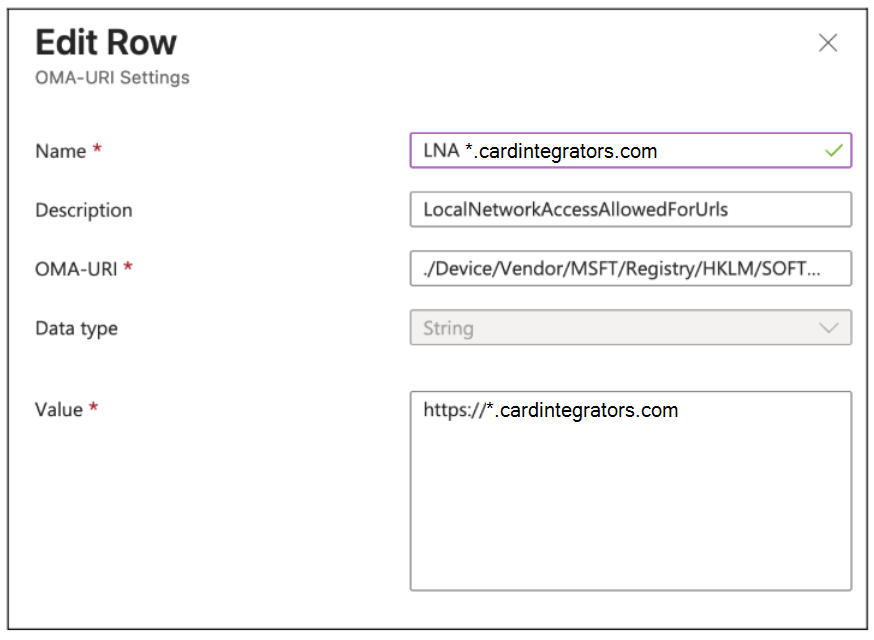
- For example: /Device/Vendor/MSFT…LocalNetworkAccessAllowedForUrls/1
- Enter the LNA URI in the OMA URI property
- Assign the profile to the desired groups and proceed to test
MacOS
For macOS devices managed by Chrome, you'll deploy a configuration profile (.mobileconfig) with a custom payload for Chrome. The payload should contain the following keys and values in the com.google.Chrome preference domain
Example .plist snippet
<key>LocalNetworkAccessAllowedForUrls</key>
<array>
        <string>https://[*.]cardintegrators.com</string>
        <string>https://[*.]yourdomain.com</string>
</array>
<key>LocalNetworkAccessRestrictionsEnabled</key>
<true/>
Testing
- Open a browser where the settings have been assigned
- Enter chrome://policy in the search bar and verify the policy has been applied to the browser
- Look for the LocalNetworkAccessAllowedForUrls policy and verify that the cardintegrators URLs are listed.
- Look for the LocalNetworkAccessAllowedForUrls policy and verify that the cardintegrators URLs are listed.
Was this article helpful?
That’s Great!
Thank you for your feedback
Sorry! We couldn't be helpful
Thank you for your feedback
Feedback sent
We appreciate your effort and will try to fix the article