Example of a Print Service Not Found error
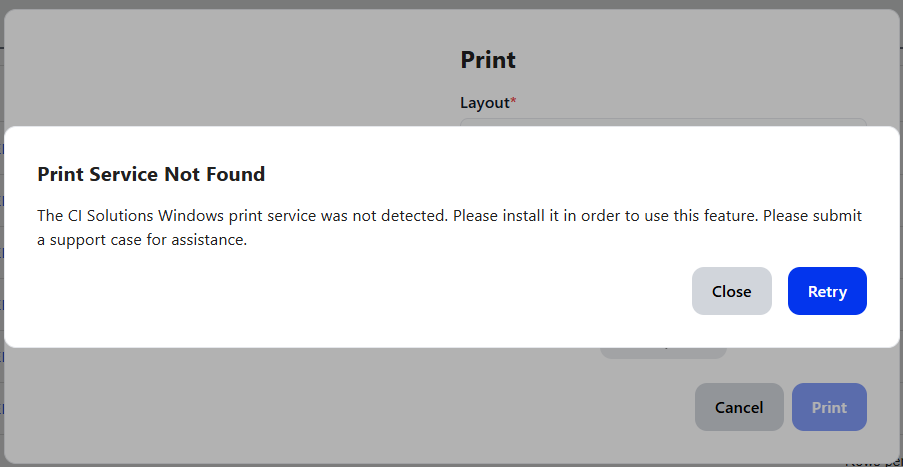
Note: You may need assistance from IT Technician with Admin Credentials to perform this change
The service should start up when the computer turns on. If the computer is slow or takes long to start up, the service might not have enough memory to start itself

Please ensure your device meets the minimum System Requirements (click here) to use the Print Service
Service is Off
1. Search Services on your device and locate the CI Solutions Print Service
a. Services is in alphabetical order, you might need to scroll a bit to find it
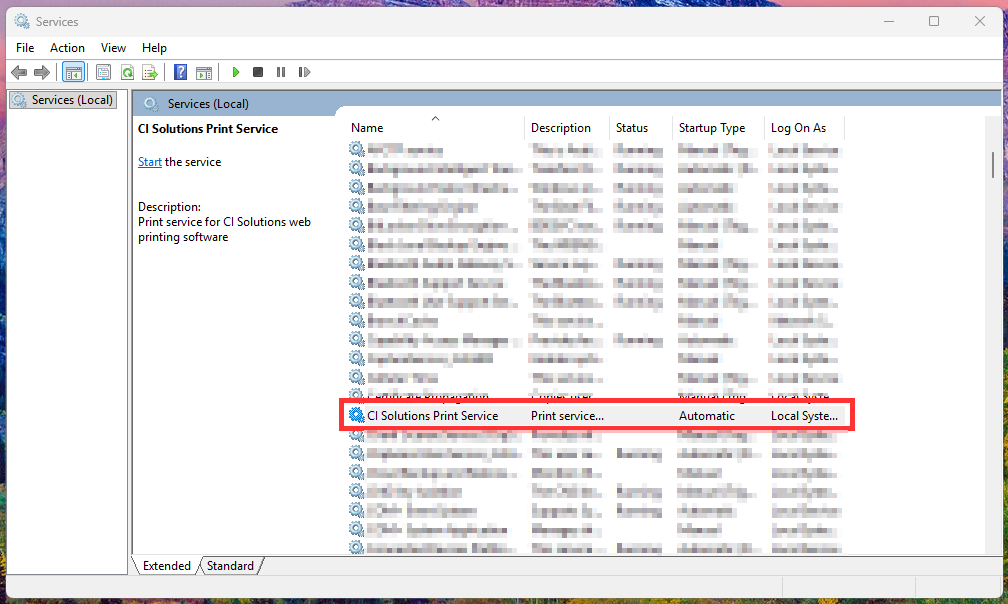
2. Double click on the Service to open the CI Solutions Print Service Properties
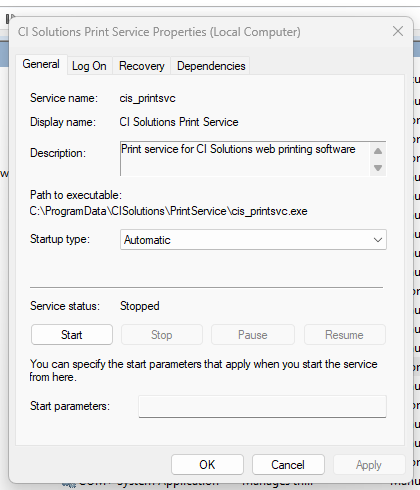
3. Set the Startup type to Automatic (delayed start) and Apply the change
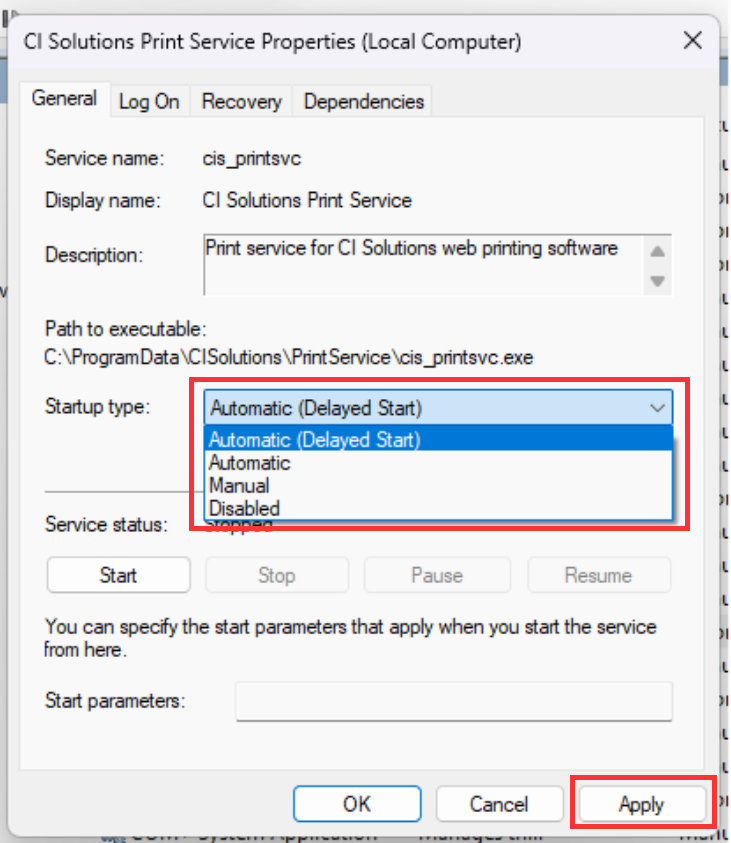
4. Start the service
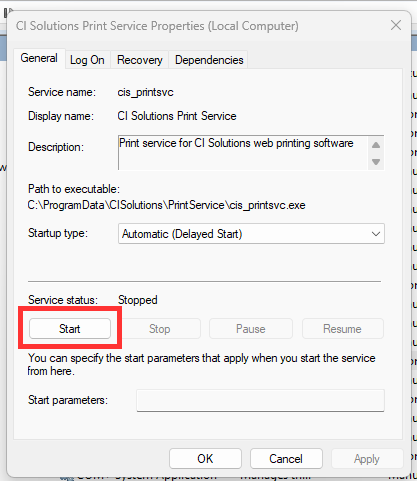
5. OK out of the properties window
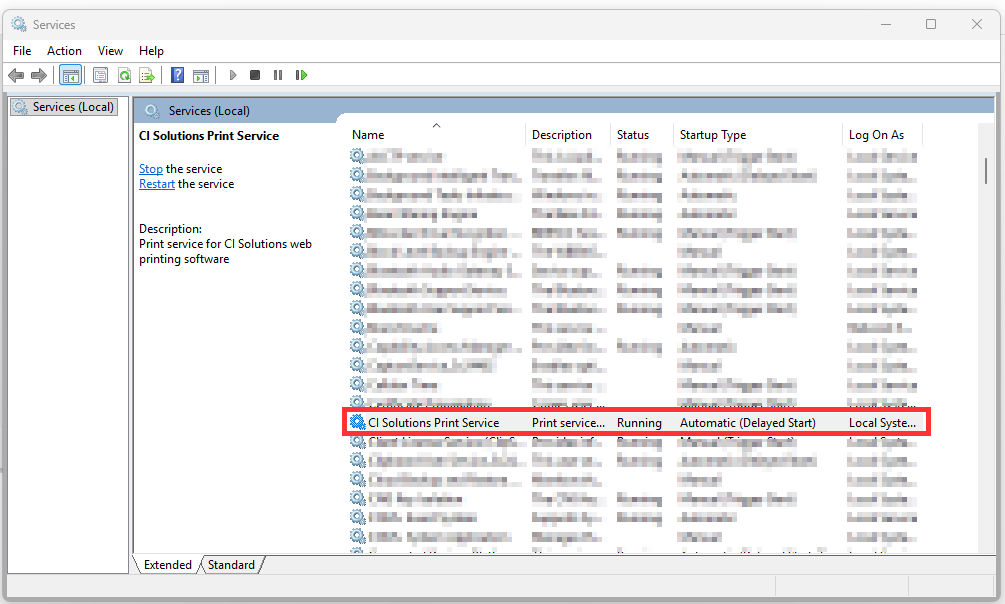
6. The service should now be Running and set to delayed start
Was this article helpful?
That’s Great!
Thank you for your feedback
Sorry! We couldn't be helpful
Thank you for your feedback
Feedback sent
We appreciate your effort and will try to fix the article