If you are seeing 'white streaks' or 'crackling' or 'turquoise streaks' on your cards, please see the below
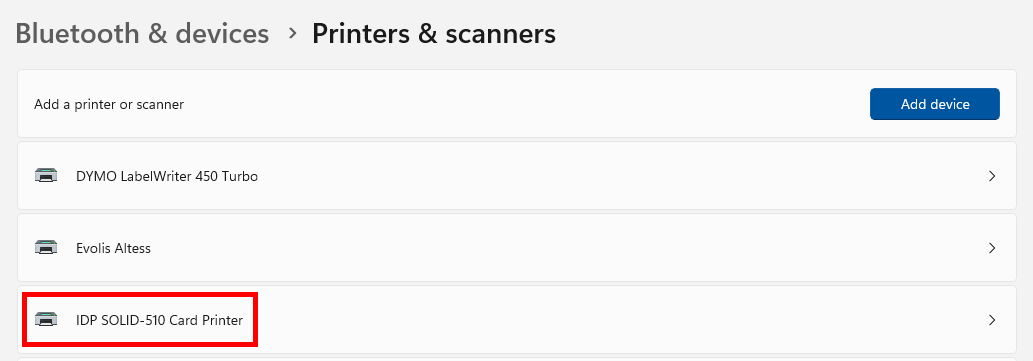
1. Navigate to Settings -> Printers and Scanners
2. Select Your Printer
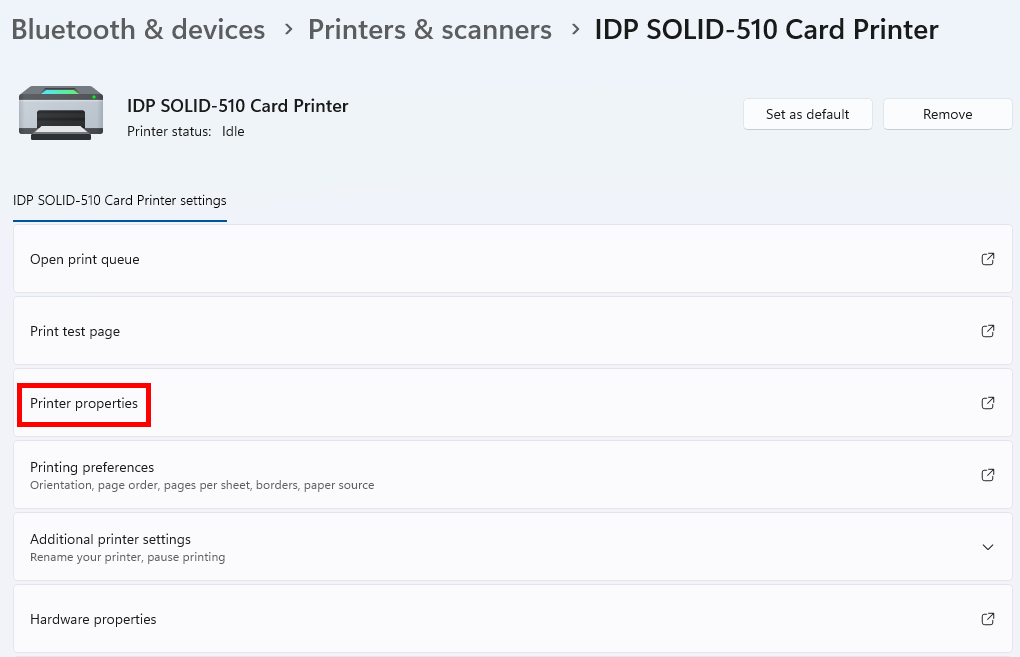
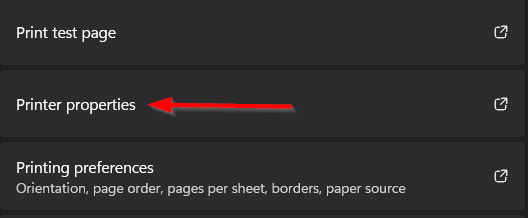
3. Click Printer Properties
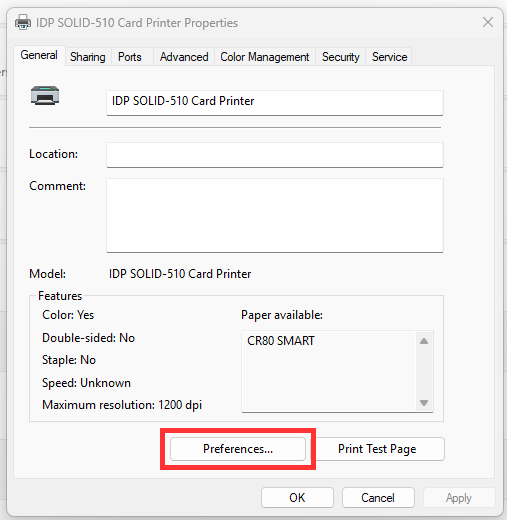
4. Click Preferences
5. Go to Advanced
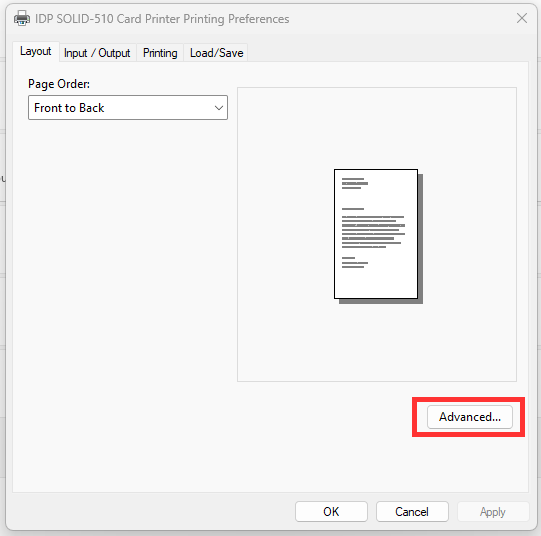
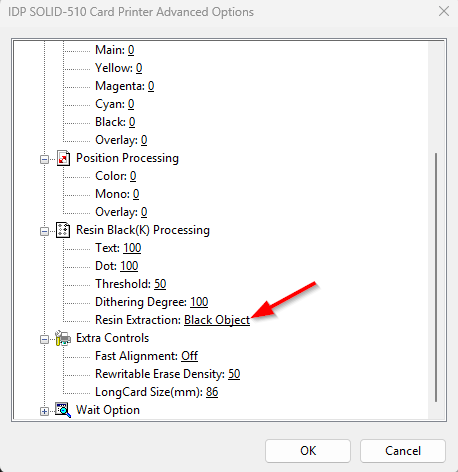
6. Scroll down to Resin Black (K) Processing
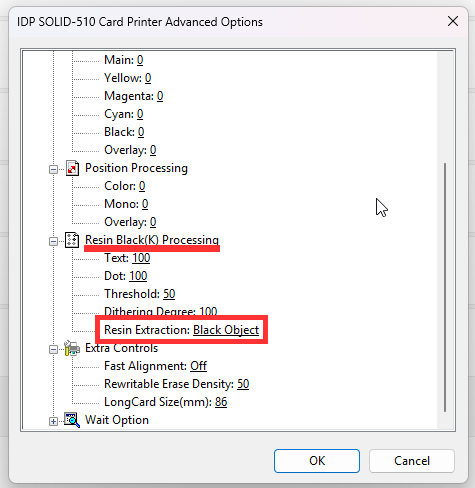
7. Select Resin Extraction > set to Black Dots
note: if this does not work, try 'black text' instead
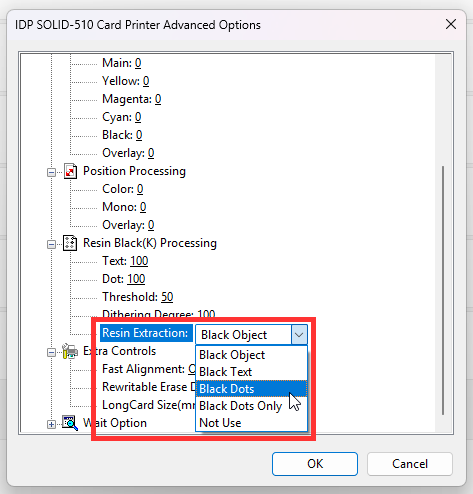
8. Click OK
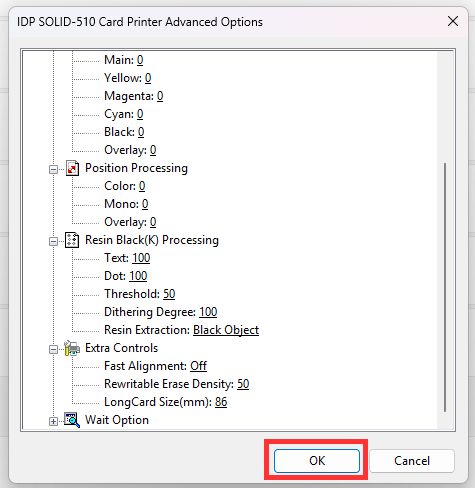
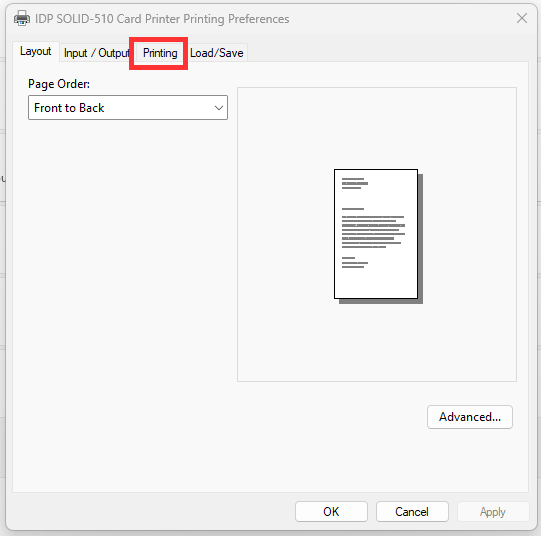
9. Back at the Printer Preferences, go to the Printing tab
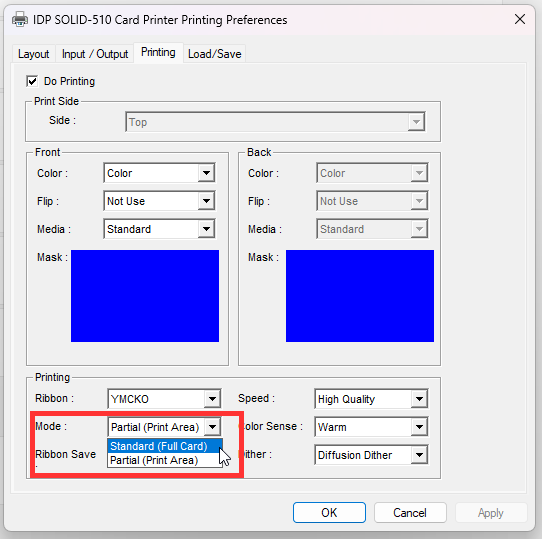
10. Set Mode to Standard (Full Card)
11. Click Apply
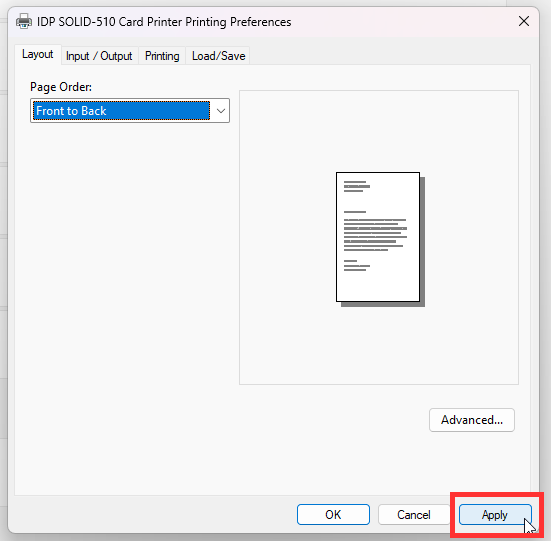
In order to have the Resin Extraction to take affect, the settings must be changed in Preferences and Printing Defaults, which will be highlighted below.
Set Resin Black(K) Extraction in Printing Defaults
- In Printers and Scanners, click on IDP Solid 510 Card Printer
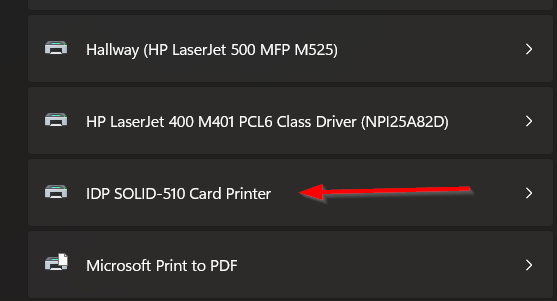
- Click on Printing properties
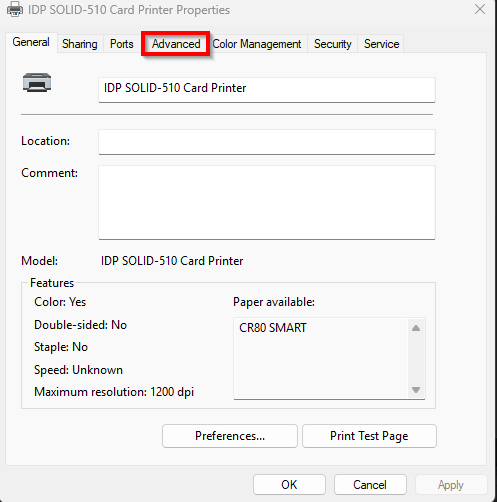
- The Printer Properties will pop up. Click on the "Advanced" tab.
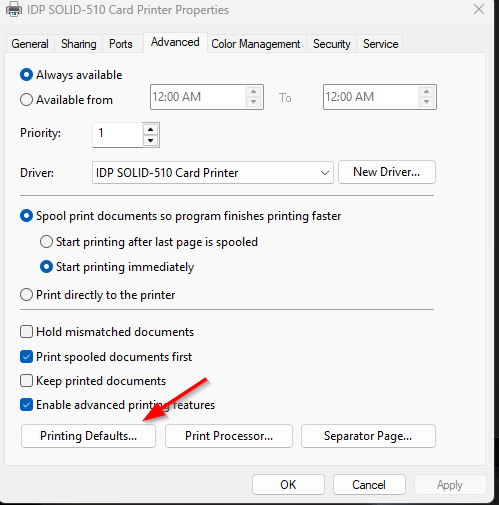
- In the Advanced tab, click on "Printing Defaults..."
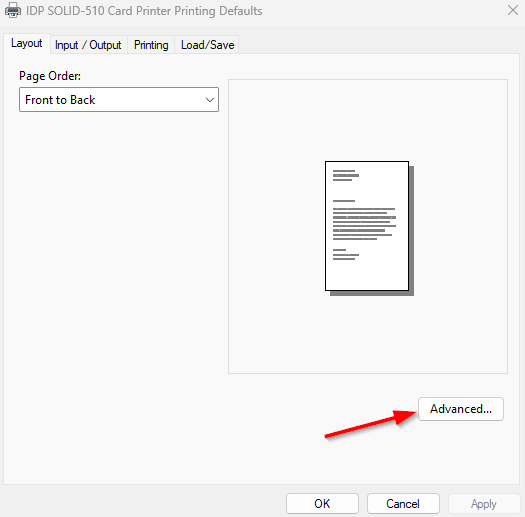
- The Printing Defaults window will pop up. Click on "Advanced"
- In the Advanced Options window, scroll down to Resin Black(K) Processing. Change to Black Dots Only. If that does not improve the quality, try Black Text or Black Dots.
- Click OK to close the window. Click Apply to apply the changes and close the window.
Was this article helpful?
That’s Great!
Thank you for your feedback
Sorry! We couldn't be helpful
Thank you for your feedback
Feedback sent
We appreciate your effort and will try to fix the article