If your printer is not responding when sending a print job, here are some troubleshooting steps to try
Restart Printer
- Unplug both cables from the back of the printer
- Wait a few seconds before plugging the printer back in
- Wait for the printer to turn on
- Try printing again
Test Printer Outside of Badge
- Go to the Printers & Scanners on your computer
- This is in your settings, you can search for it in your Windows Search Bar
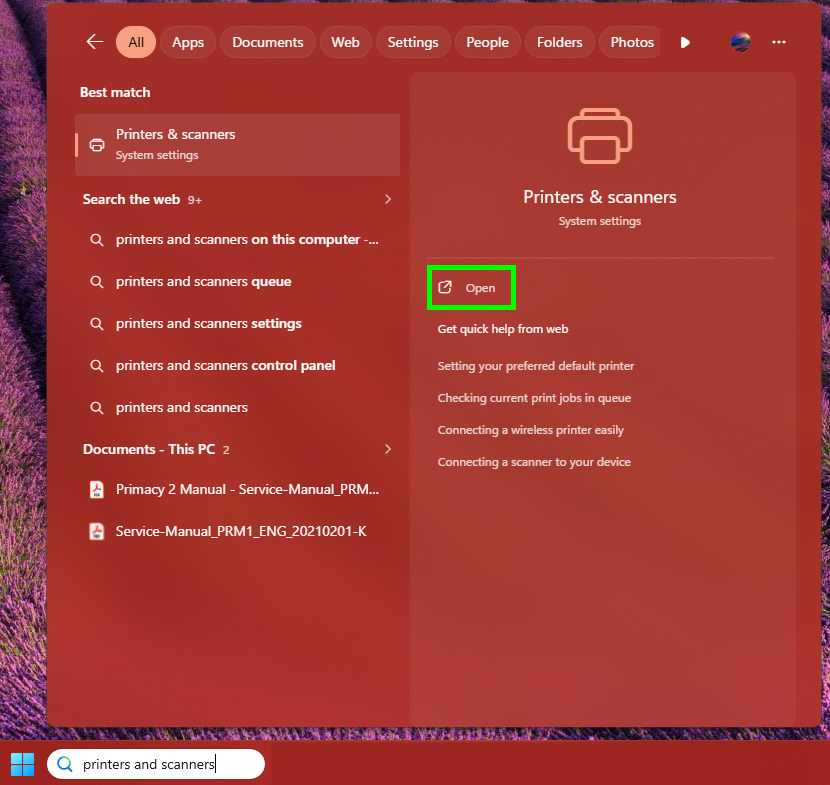
- This is in your settings, you can search for it in your Windows Search Bar
- Select your printer
- Select 'Print a Test Page'
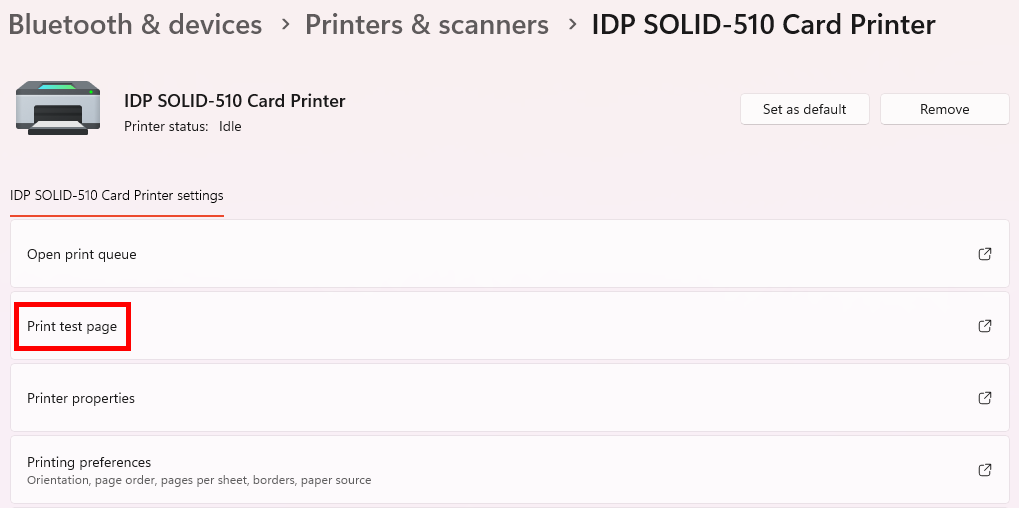
- If a page prints, try printing from Badge again
- Are there any error messages? If you're having trouble printing from Badge, Submit a Ticket Here
- If a page doesn't print, keep troubleshooting
Try Another USB Port
- Ensure your printer is plugged directly into your computer
- If you use a hub, switch, or dock try to plug the printer directly to the computer
- Try printing again
- If you still cannot print, try plugging your cable into another USB port on your computer
Check Device Manager
- Open the Device Manager on your computer
- You can search for it in your Windows Search Bar
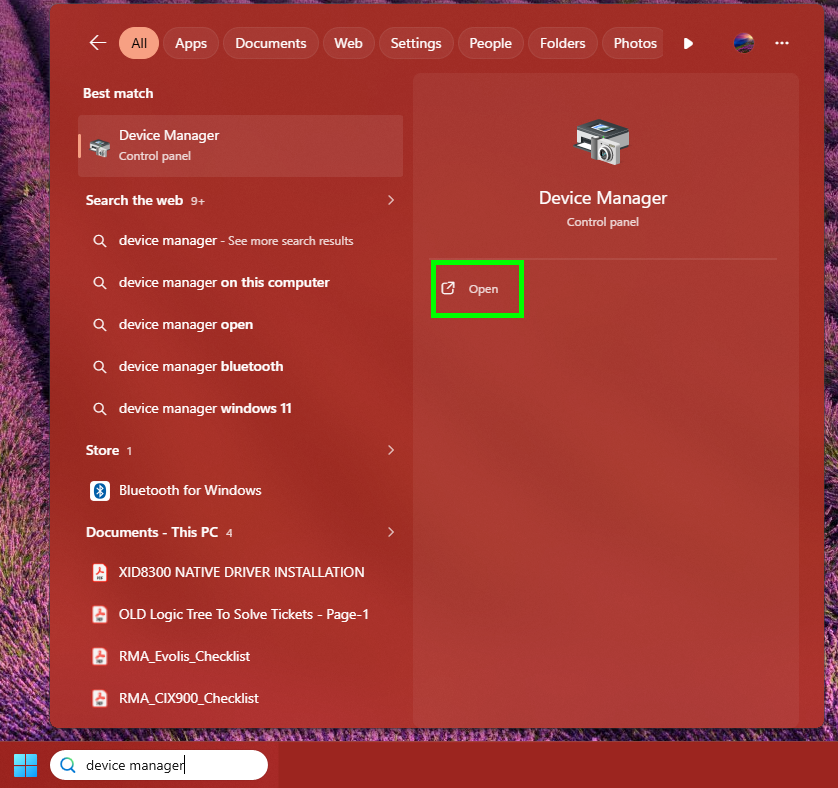
- You can search for it in your Windows Search Bar
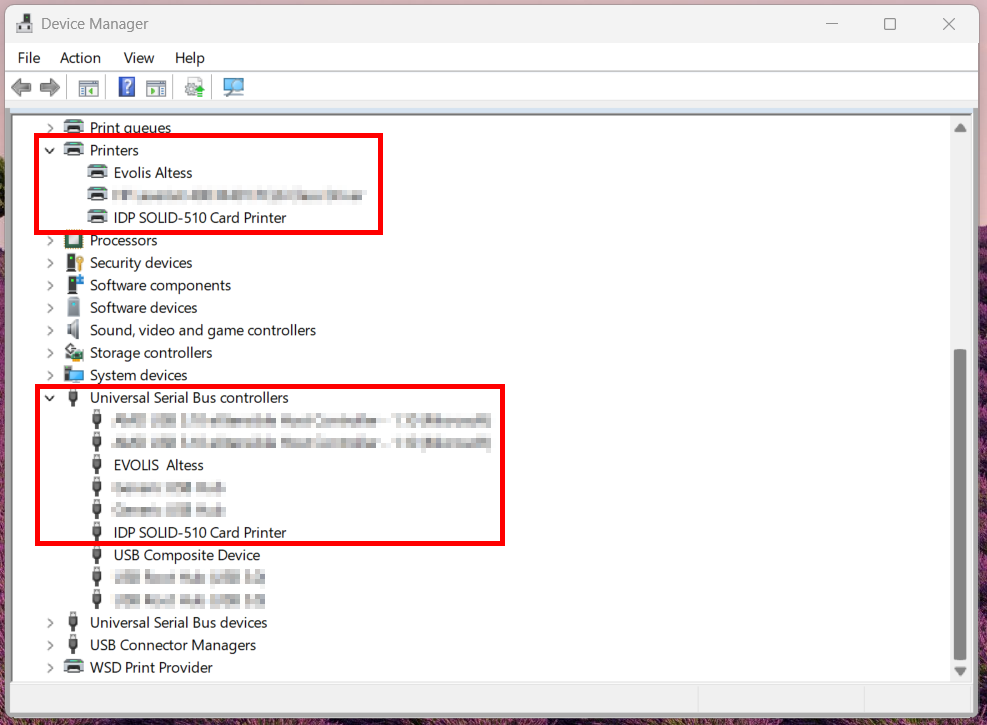
- Locate Printers and select the arrow to expand the menu
- See if your printer is listed
- Locate Universal Serial Bus Controllersand select the arrow to expand the menu. See if your printer is listed here as well
- Note: If your printer is Non-RFID or a Network Printer, your printer will not appear here
- Example:
Another Cable or Workstation
- If you have another printer cable available, try switching the cable out. Is the printer recognized in Device Manager?
- Try moving the printer to another computer and installing the drivers there. Is the printer recognized in Device Manager?
If you are still having issues, Submit a Ticket Here
Was this article helpful?
That’s Great!
Thank you for your feedback
Sorry! We couldn't be helpful
Thank you for your feedback
Feedback sent
We appreciate your effort and will try to fix the article