Advanced Cleaning
Clients must run advanced cleaning every 5 regular cleanings to ensure the Evolis Primacy is dust-free and prints quality ID Cards.
Required Items: Adhesive Cleaning Card, Print head cleaning brush or pen, T-shape cleaning card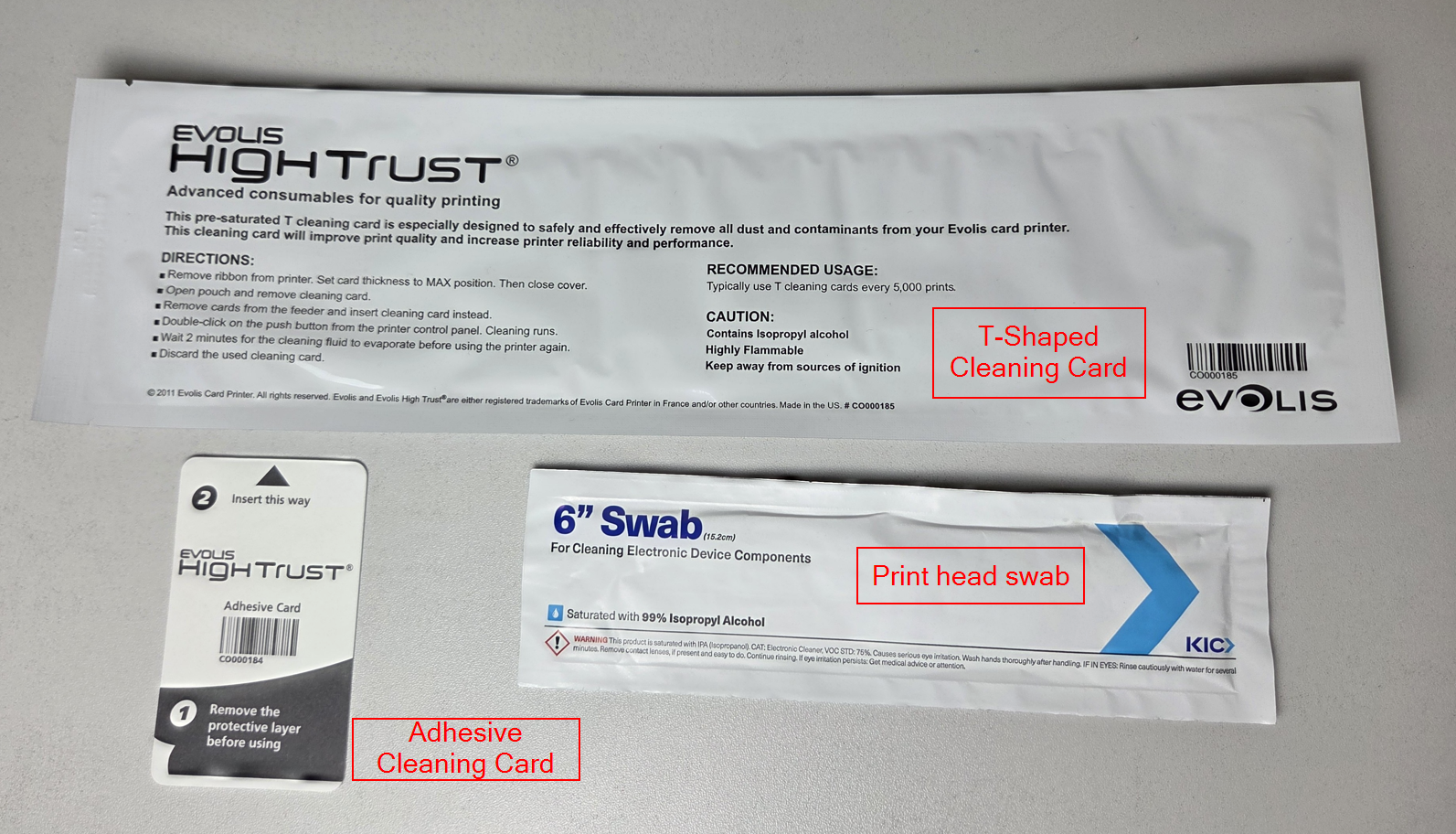
1. Remove the ribbon and all cards from the printer
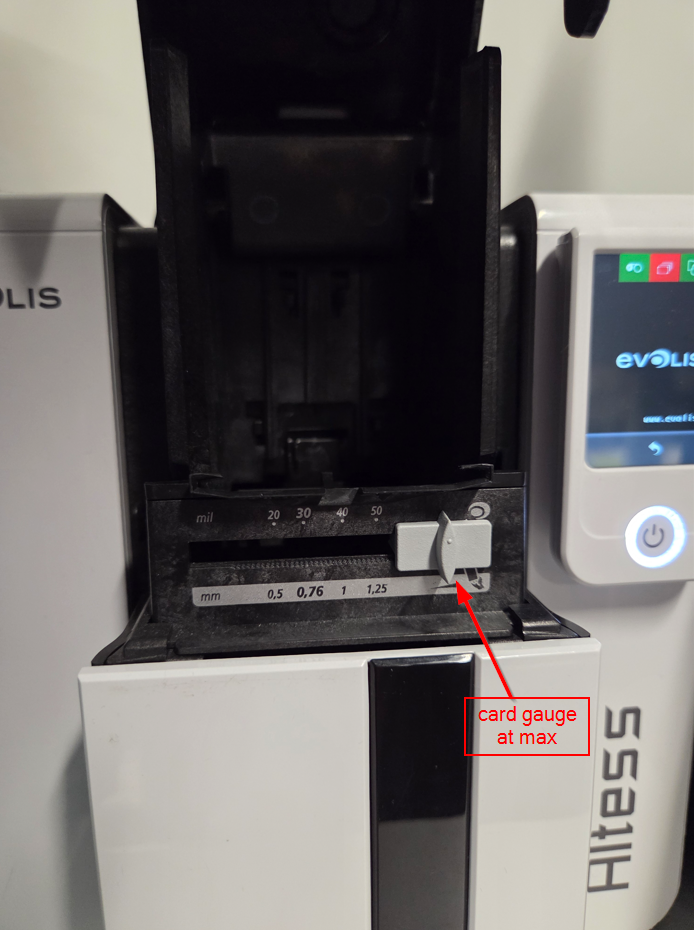
2. Set the card thickness gauge to MAX (all the way to the right) inside the input hopper
3. Open the T-Shape cleaning card
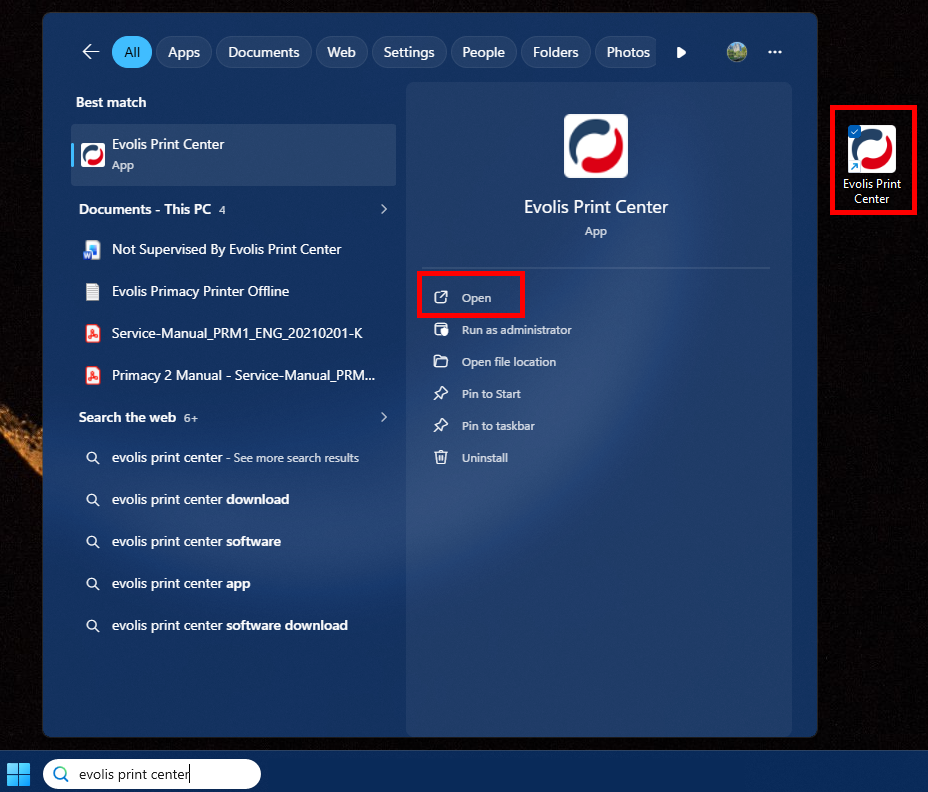
4. Open the Evolis Print Center app by double clicking the icon or searching for it on your computer
5. Double click on your printer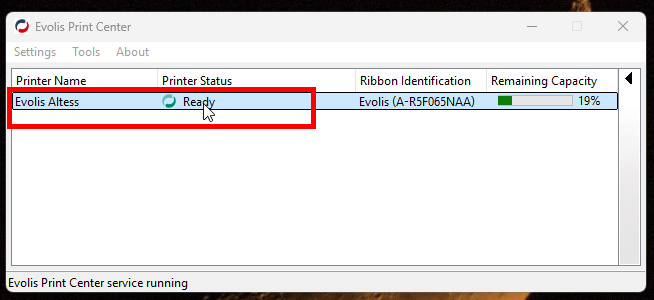
6. The Properties windows will open. Select Cleaning in the left menu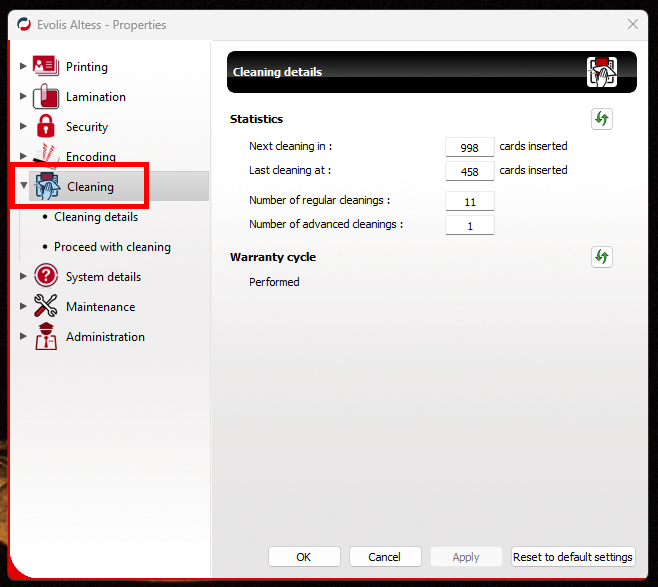
7. Select Proceed with Cleaning then open Start Cleaning for an Advanced Cleaning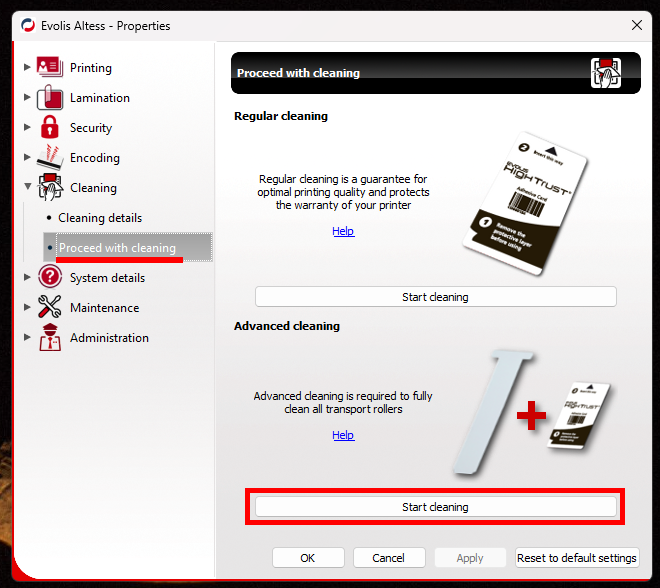
8.Follow the on-screen prompts and insert the T-Shape cleaning card into the feeder
Ensure the card is fully inserted by guiding it in

Once complete, the T-Shape cleaning card will be pushed out and removed.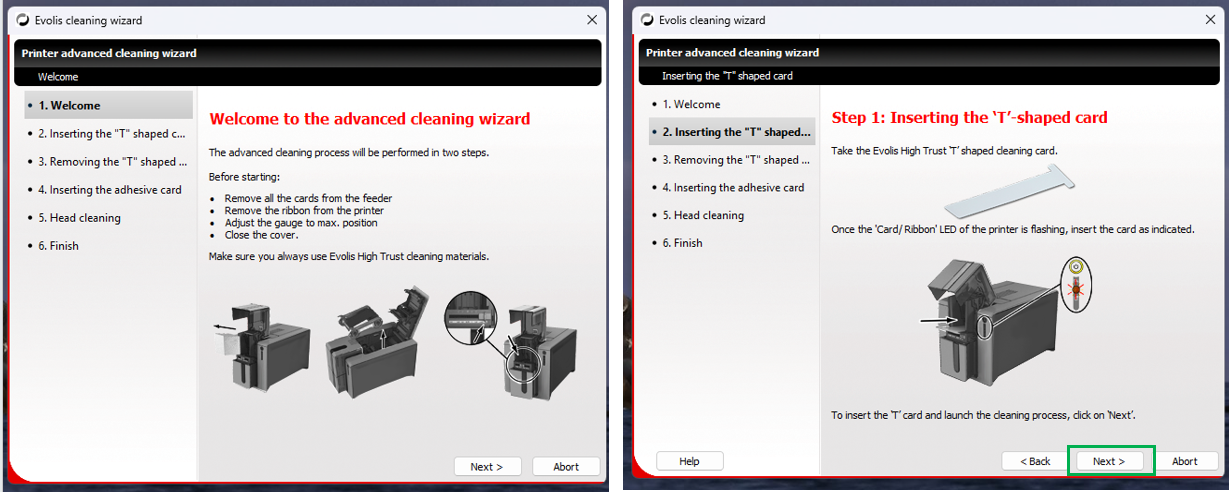
9. Place each side of the adhesive card on the palm of your hand ten times to reduce the adhesiveness.
The card will jam the printer if the card is too sticky.10. Insert adhesive card into the hopper
The adhesive cleaning card will eject from the exit hopper.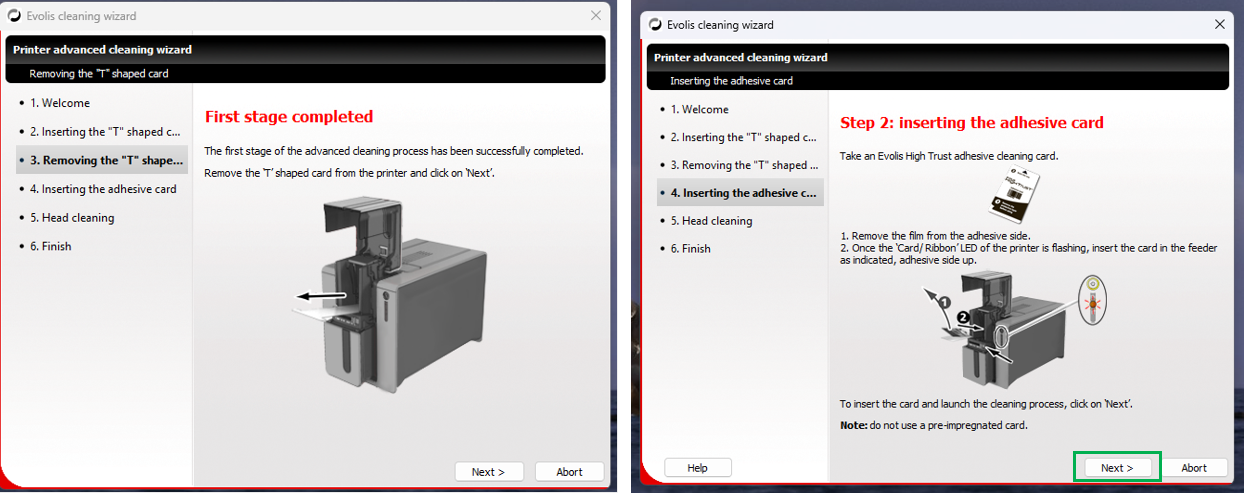
8. Remove and dispose the adhesive cleaning card and the T-Shape cleaning card
9. Find the printhead and gently wipe the printhead from side to side 5-10 times with the Printhead Cleaning Brush 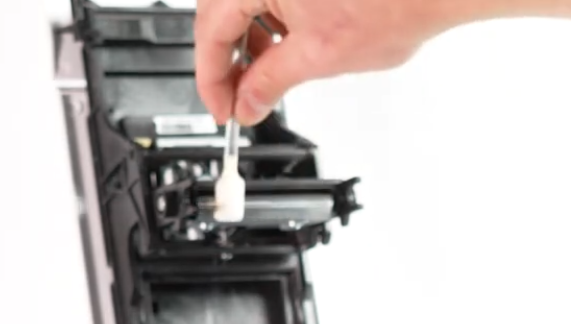
10. Set the card thickness gauge back to 35 mil
11. Reinsert the ribbon and cards
Was this article helpful?
That’s Great!
Thank you for your feedback
Sorry! We couldn't be helpful
Thank you for your feedback
Feedback sent
We appreciate your effort and will try to fix the article