Example:
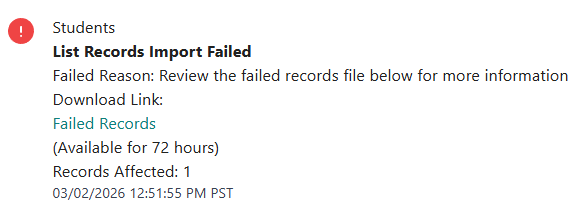
If you are seeing List Records Import Failed errors on your dashboard, there could be a few different reasons for this occurring.
Download the Failed Records file to see which records fail and the reason for the failure
Common Import Errors
Record is assigned to an invalid campus
- Ensure the Campus name matches exactly what is in Badge. Campus names are case sensitive
- e.g. 'ABC Elementary' and 'abc elem' will be considered different campuses

Record is a duplicate
- Badge will reject records with duplicate IDs. Ensure to remove all duplicates from your data before re-importing the records

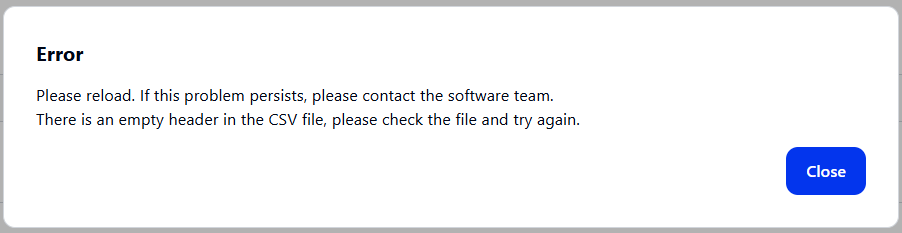
There is an empty header in the CSV file
- Badge requires that all imports be in proper CSV format. This specific error means there is an extra column without a header (there is data outside the regular columns)
- Click here to read the full article on proper formatting
- See the example, where the grade is outside the normal column

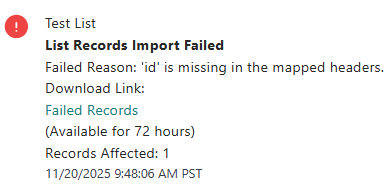
'ID' is missing in the mapped headers
'Campus' is missing in the mapped headers
- Badge requires two fields for imports, ID and Campus. All other fields such as name, grade, or bus route are technically optional
- Note, there may be some exceptions when a default campus is set. However, most lists are set without a default campus
- For help with mapping headers, see step 3 of the Manual Import: Records and Images
File Already Processed / No New Photos
- Indicates the file was already successfully uploaded once, Badge already has the information in its system
No updates found
- There are no record updates found in the file. Either the file was already processed or the import contained no new information. Badge is up to date.
Was this article helpful?
That’s Great!
Thank you for your feedback
Sorry! We couldn't be helpful
Thank you for your feedback
Feedback sent
We appreciate your effort and will try to fix the article