This guide explains how to enable Microsoft Single Sign-On (SSO) so your users can log into Badge using their Microsoft work or school accounts.

In this guide, "users" refers to anyone who logs into Badge, including both Owners and Operators.

Microsoft SSO with Badge uses a consent-based connection, which means no manual Microsoft application setup is required.
What SSO Will Do (and Not Do)
SSO Will:
- Allow users to log into Badge using Microsoft
- Eliminate the need for separate Badge passwords
- Allow Microsoft to control which users can access Badge
SSO Will Not:
- Automatically create new users in Badge (Owners still create users manually)
- Change existing user roles or permissions
- Sync users or groups automatically
Before You Begin
Before starting setup, please confirm the following:
- You have Owner access to Badge
- You are signed in as a Global Administrator to Microsoft
- Users who will log in via SSO already exist in Badge
- Each user’s email address in Badge exactly matches their Microsoft email address
Important: Badge uses email address to identify and match users during Microsoft SSO login
For additional guidance, see the SSO Readiness Checklist.
Step 1: Connect Microsoft to Badge
To begin setting up Microsoft SSO, a Microsoft Global Administrator must connect Badge to your Microsoft organization. No manual Microsoft application setup is required.
Log in to Badge as an Owner
- Make sure that your Badge Owner email address exactly matches your Microsoft email address
- Make sure that your Badge Owner email address exactly matches your Microsoft email address
- In Badge, navigate to the 'Access' tab in the top navigation
- In the Authentication section, select Single Sign-On (SSO)
- Choose Microsoft from the list of identity providers
- Click Save
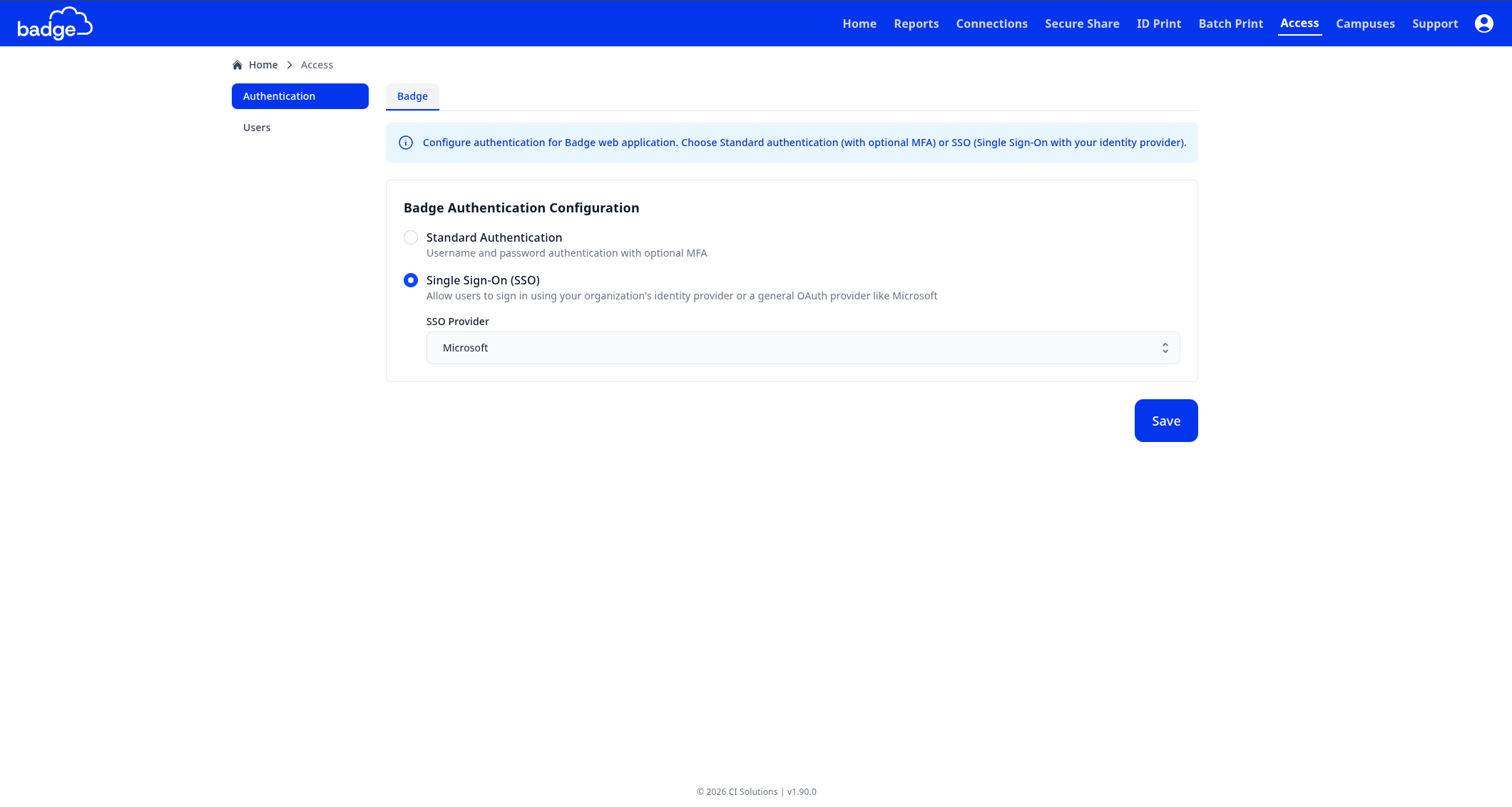
- In the Authentication section, select Single Sign-On (SSO)
- Logout of Badge
- From the Badge login screen, select Log in with Microsoft
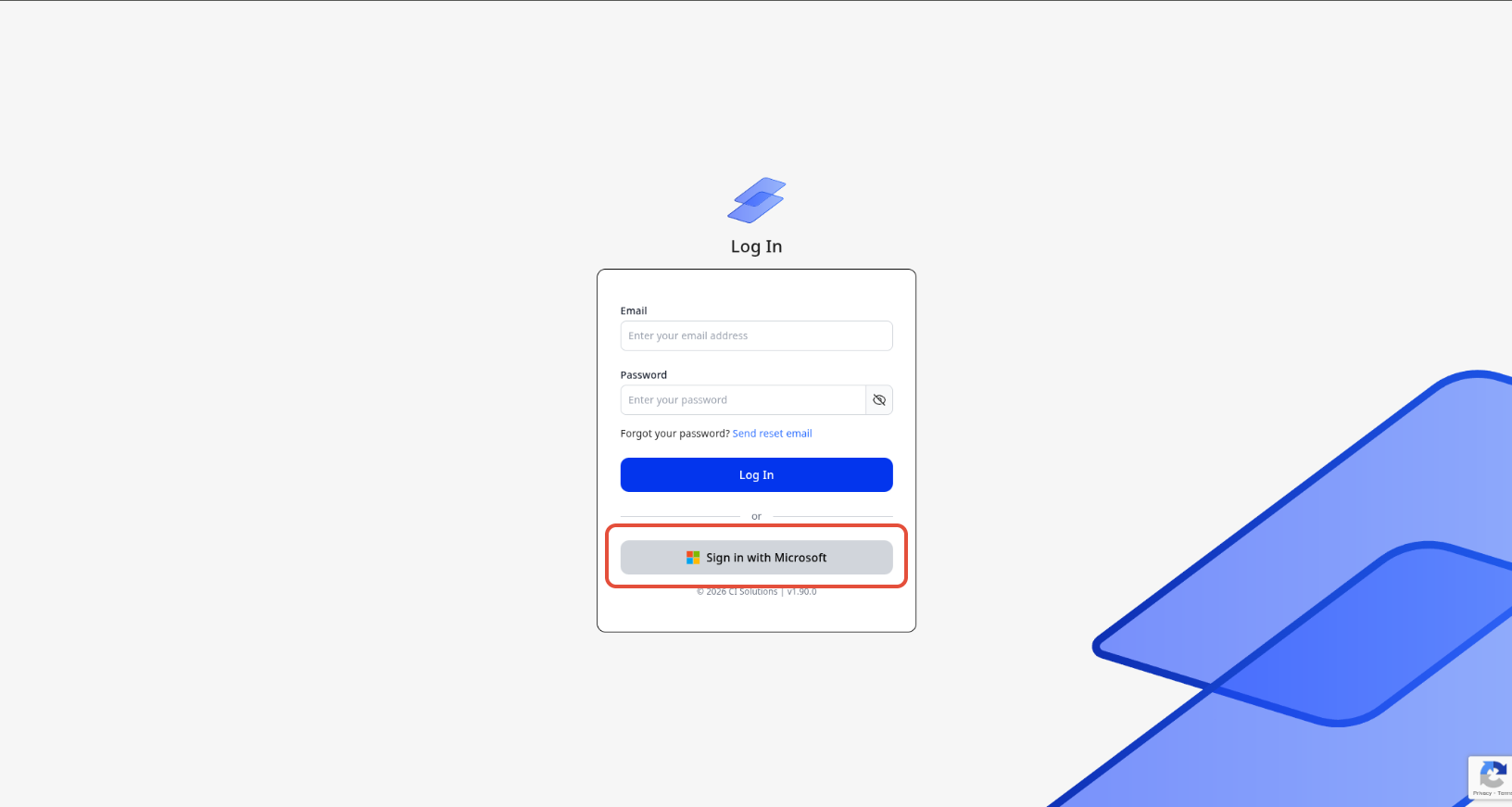
- You will be redirected to Microsoft to complete the connection
- Review the permissions being requested
- Consent to add Badge to your Microsoft organization
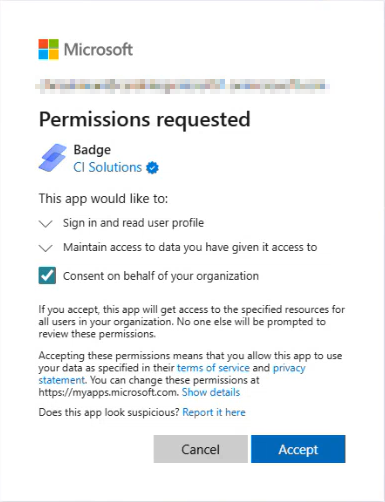
- Make sure that you are redirected to Badge and logged in
- If you are not redirected and/or hit an error message, the Microsoft connection may not have been successful
What to expect during Microsoft consent
During this step, you will briefly leave Badge and complete the approval process in Microsoft. This is expected and required to enable Microsoft SSO for your organization.
You may be asked to review permissions and confirm that Badge can authenticate users using Microsoft. No user passwords are shared with Badge.
Once consent is granted, Microsoft completes the setup for your organization and returns you to Badge.
This consent step establishes trust between Microsoft and Badge and only needs to be completed once per organization by a Microsoft administrator.
Optional Security Recommendation: Microsoft Access & Session Security Considerations
To align Microsoft and Badge sign-in behavior with your organization’s security policies, we recommend reviewing how access and session behavior is enforced for Badge within Microsoft. To learn more about Session Conditional Access, visit Microsoft's help article here.
This is especially important in environments where users may access Badge from shared or communal computers (for example, front office or shared staff workstations).
Some organizations choose to configure Microsoft access or conditional access policies so that:
- Users are required to re-authenticate with Microsoft after signing out of Badge
- Microsoft sign-in sessions do not persist beyond the Badge session
These configurations help ensure that signing out of Badge fully ends the user’s authenticated session and prevents unintended access by the next user on a shared device.
Access and session behavior may vary by organization. If you are unsure which policies to apply, consult your internal IT team or Microsoft documentation.
Step 2: Confirm User Email Addresses
Badge identifies users during Microsoft SSO login using their email address.
Before proceeding, confirm the following:
- Users who will log in using Microsoft SSO already exist in Badge
- Each user's email address in Badge exactly matches their Microsoft email address
If the email address does not match, the user will not be able to log in via SSO.
Where to verify user email addresses in Badge
An Owner can review and verify user email addresses directly in Badge:
- Navigate to the 'Access' tab in the top navigation and go to the Users section
- Review the Email column for each user
- Confirm that each email address exactly matches the user's Microsoft email address
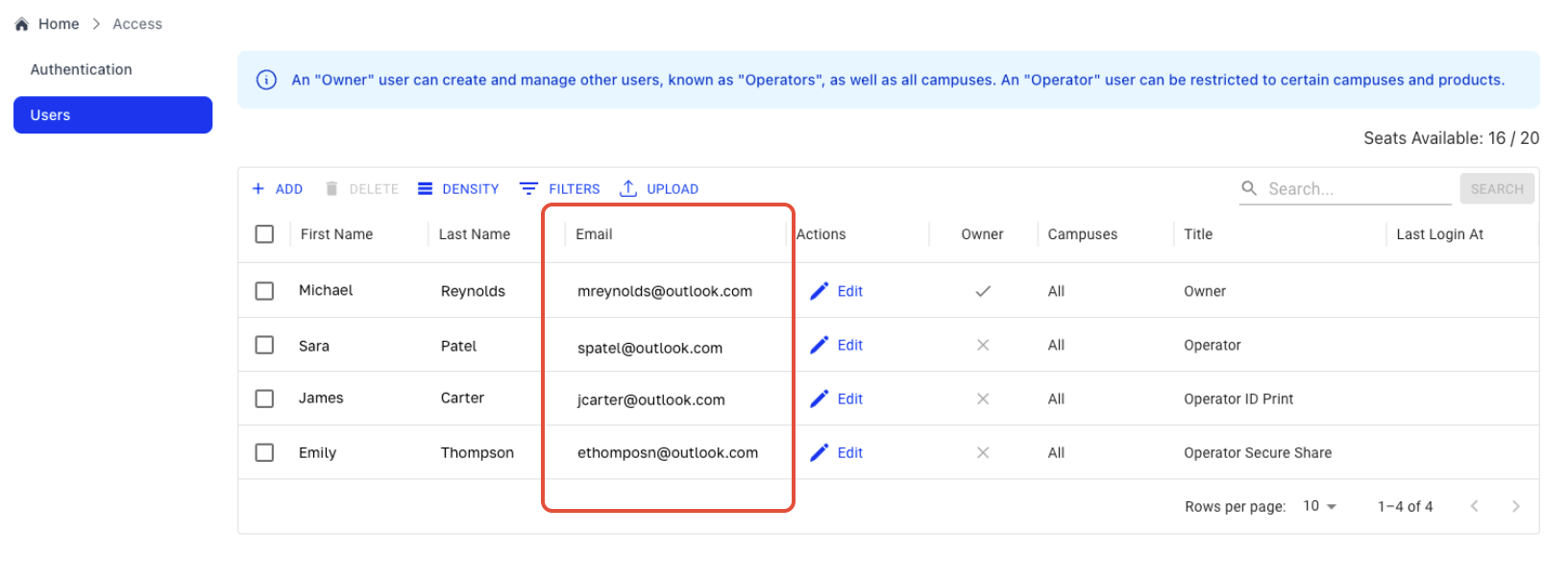
Tip: If a user's email address needs to be updated, an Owner can edit the user record from this page before continuing with SSO setup.

Updating a user's email address in Badge does not automatically notify the user, so you may want to inform them separately if needed.
Step 3: Choose Which Users Can Access Badge
In Microsoft, you control which users are allowed to sign into Badge.
You can:
- Grant access to individual users (please note that they will need to have an account in Badge)
- Grant access to Microsoft groups
Badge will honor the access rules configured in Microsoft.
Step 4: Enable SSO for Your Organization
Once Badge has been added to Microsoft:
- Communicate the new login method to your users
After SSO is enabled, users must log in using Microsoft SSO. Logging in with a Badge email address and password will no longer work. Be sure to communicate the new login method to your users so they know what to expect.
Note: If an Owner creates a new user in Badge after Microsoft SSO is enabled, that user will receive an automated “Welcome to Badge” email with a link to log in using Microsoft SSO. This is expected behavior and helps users access Badge using their Microsoft account.
Common Issues & Tips
Login Fails After SSO Is Enabled
Most often caused by:
- Email address mismatch between Microsoft and Badge
- User not assigned access to Badge in Microsoft
User Can Log Into Microsoft but Not Badge
Check that:
- The user exists in Badge
- The email address matches exactly between Microsoft and Badge
Need Help?
If you have followed the steps above and are still experiencing issues enabling Microsoft SSO, please open a Support ticket with our team.
When submitting your request, please include:
- The email address of a test user
- A brief description of the issue or any error message you are seeing
Submit a ticket here if you are still experiencing issues enabling Microsoft SSO.Summary
To enable Microsoft SSO with Badge:
- A Microsoft administrator consents to connect Badge to your organization
- Users are matched by email address
- Access is controlled through Microsoft
Once complete, users can log into Badge using their Microsoft accounts.
Was this article helpful?
That’s Great!
Thank you for your feedback
Sorry! We couldn't be helpful
Thank you for your feedback
Feedback sent
We appreciate your effort and will try to fix the article