Run Print History Report
Print History reports will show the IDs that your account has printed
Operators will see all the IDs that they have printed
Owners can see all IDs that all users have printed
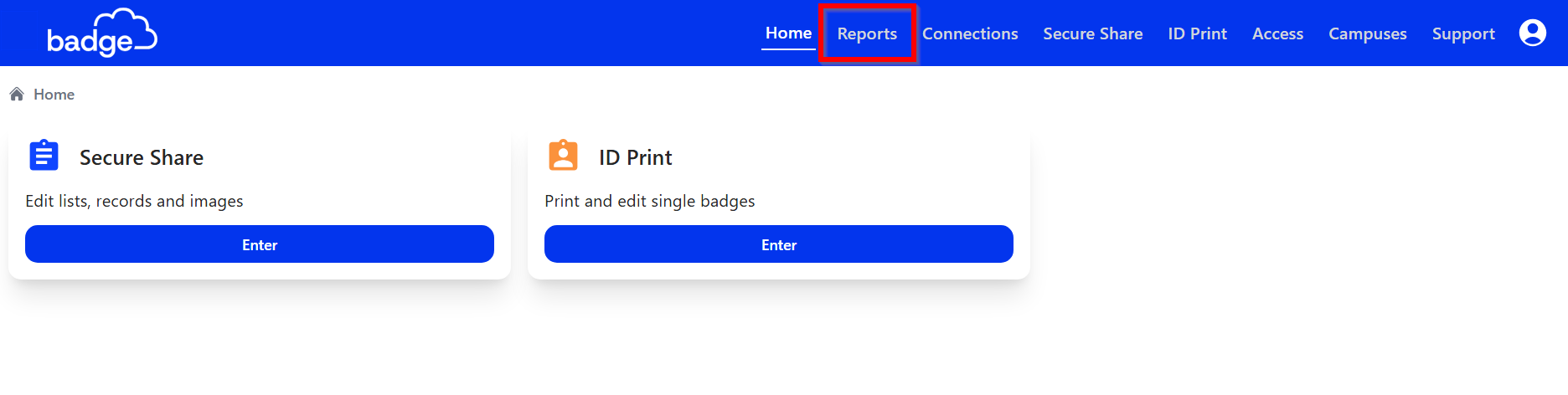
1. Click Reports on the top navigation bar
2. Click Print History
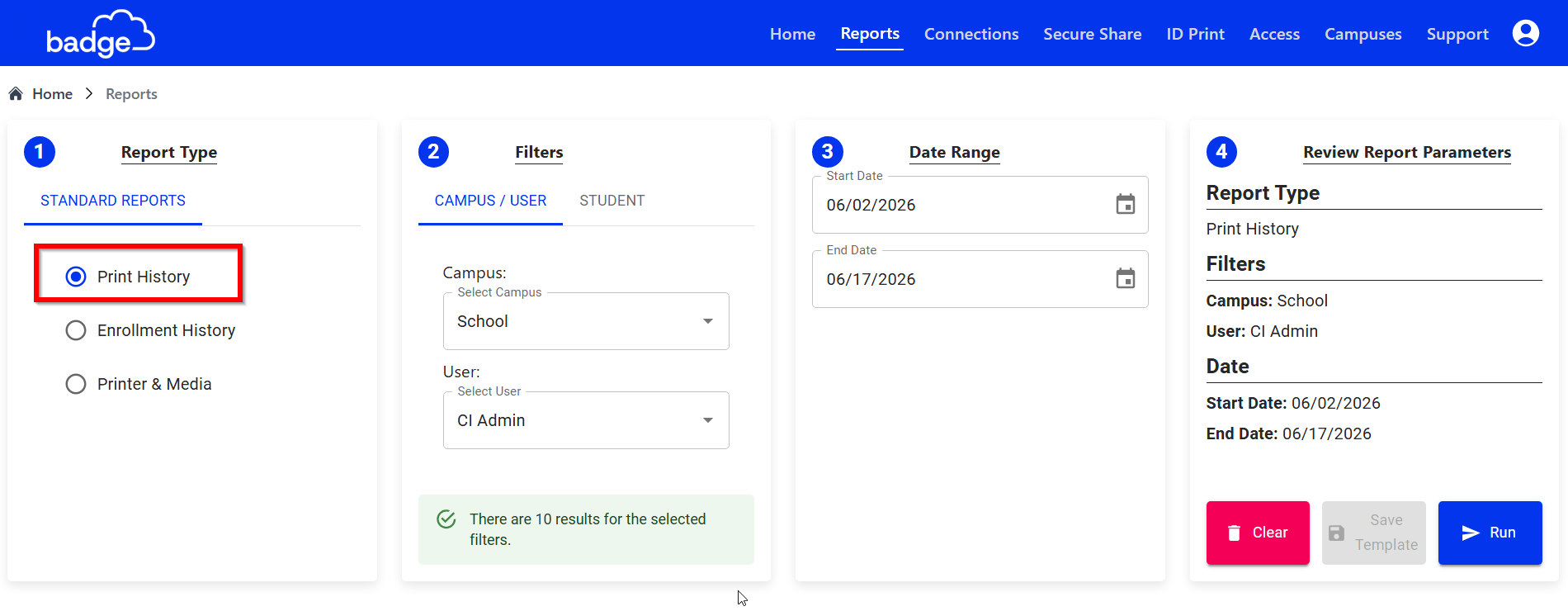
3. Choose your filter. Print history can be filtered by User, Campus, or Student
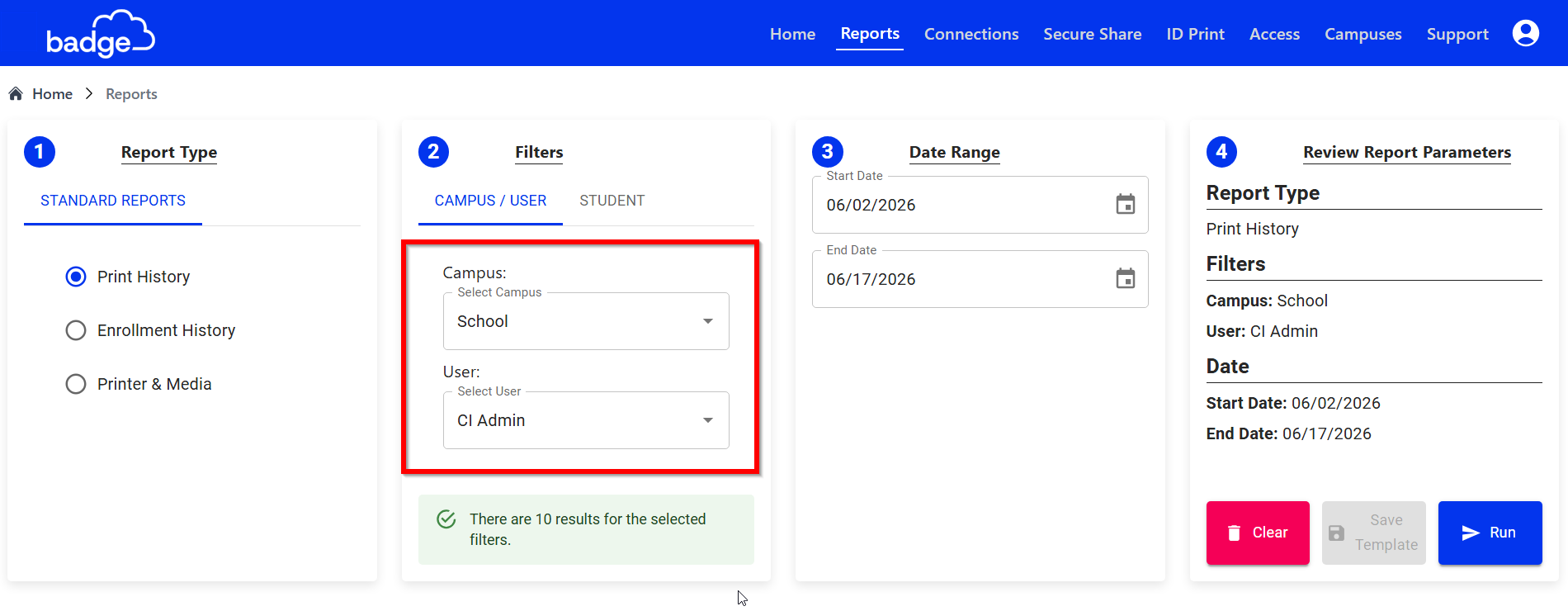
3a. Filter by campus, select Campus
- Clients can select All or any specific campus to enhance report.
- Operators will be limited to the campuses they have access to
3b. Filter by user, select User
- Clients can select a specific User to generate a report only for an user.
3c. Filter by student, click STUDENT > Search for Record
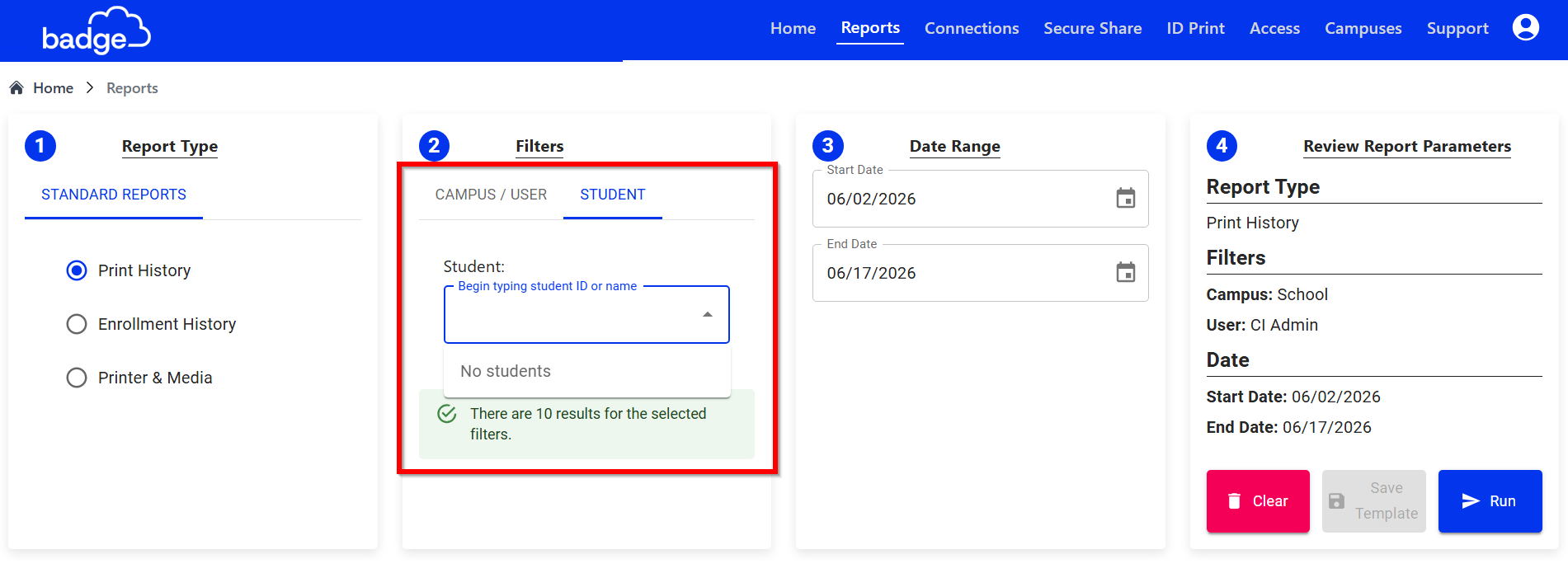
- Clients can search for a record based on ID or Name.
5. Select Date Range
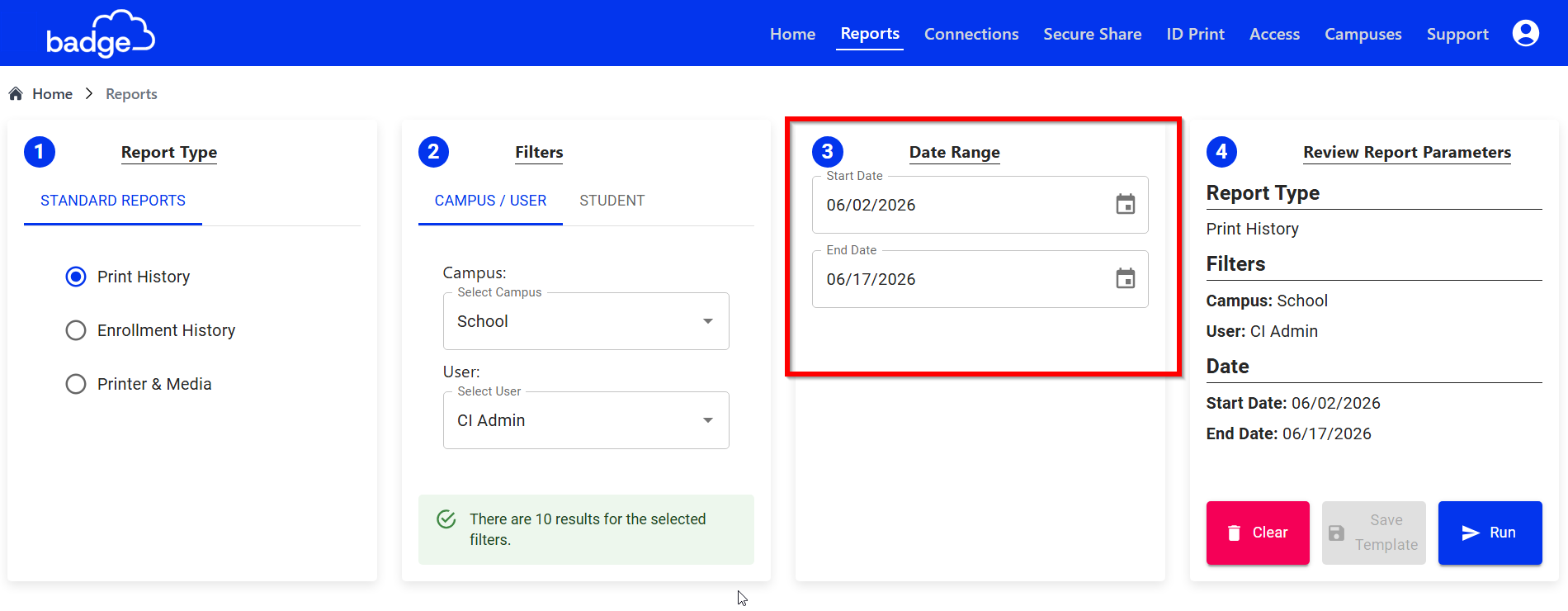
- Clients can select a Date Range to generate a report for from and to a specific date.
- Depending on the filters, the date range will be limited by when the user or student was active.
- For example, User A has used Badge for a year and User B joined Badge last week. User A's default date range will be larger than User B's
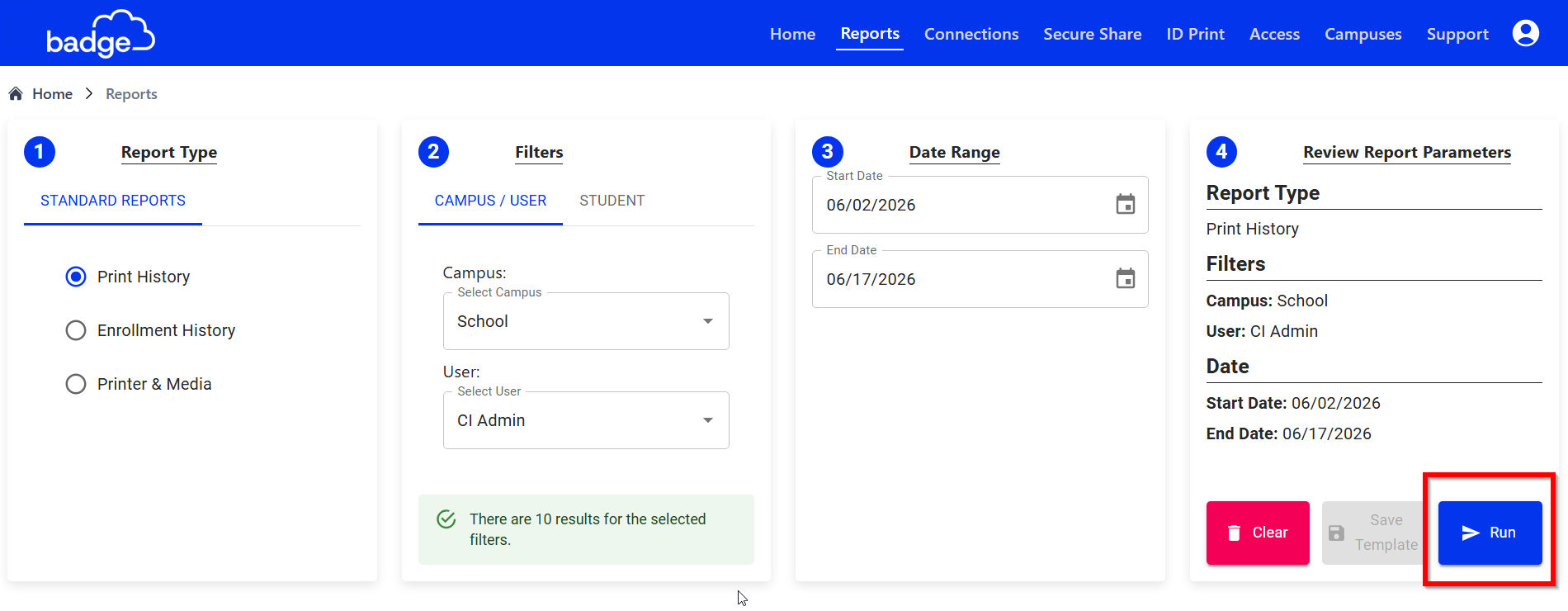
6. Click Run
Was this article helpful?
That’s Great!
Thank you for your feedback
Sorry! We couldn't be helpful
Thank you for your feedback
Feedback sent
We appreciate your effort and will try to fix the article