Set USB Serial as Use
- Ensure there is a ribbon inside of your printer (else you will not be able to open the Printer Config)
- Go to the Printers & Scanners on your computer
- This is in your settings, you can search for it in your Windows Search Bar
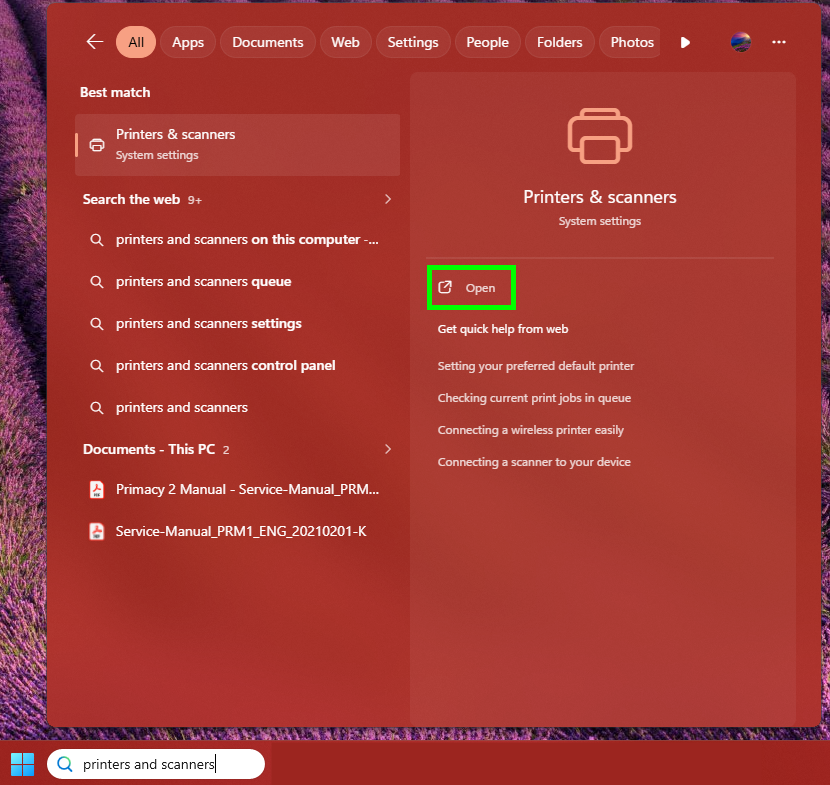
- This is in your settings, you can search for it in your Windows Search Bar
- Select your printer
- Open the Printer Properties
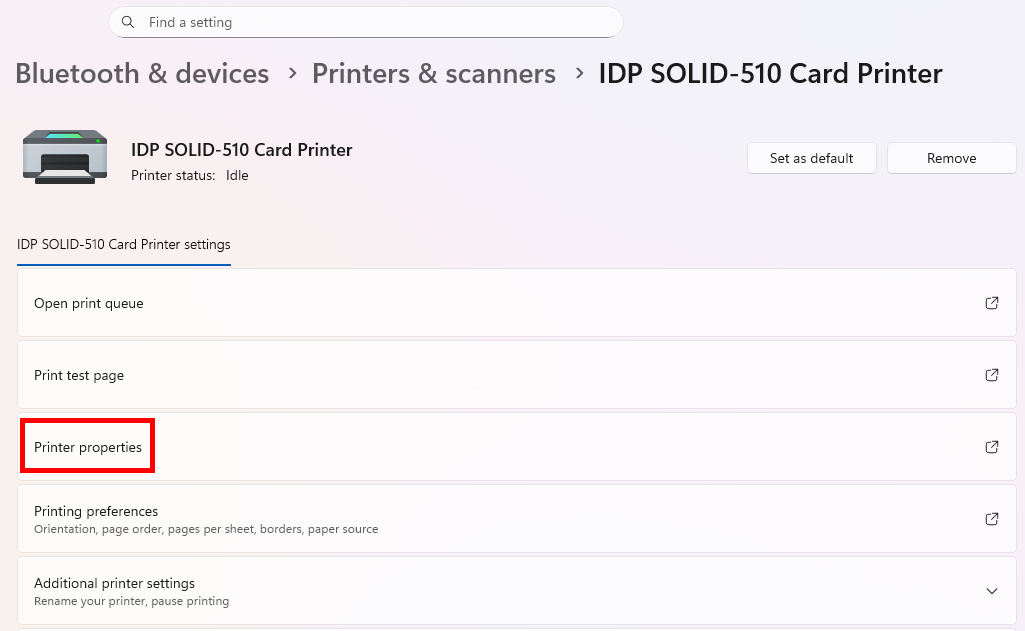
- Select the Service tab
- Select 'Config Printer'
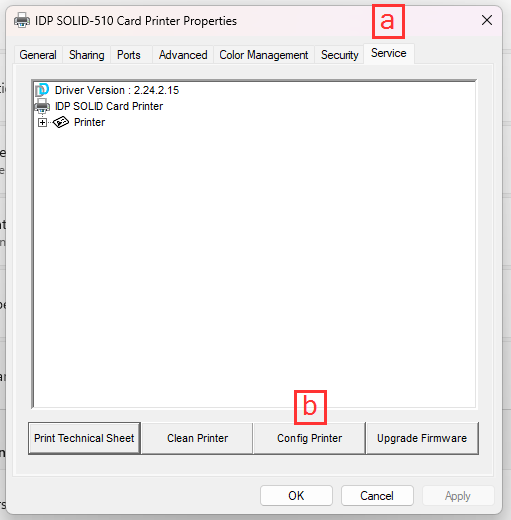
- The printer config will load. When it asks for a password, select 'OK'
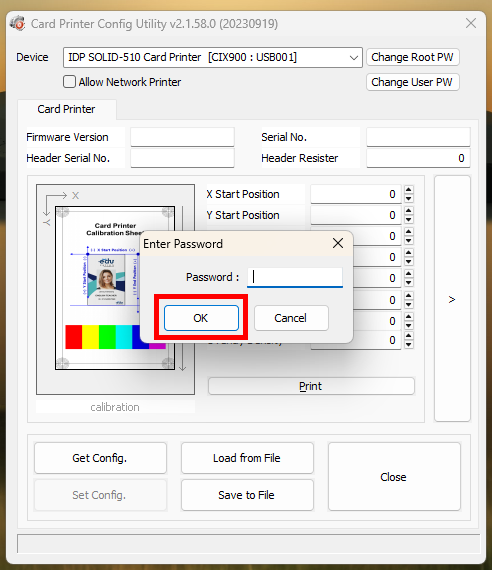
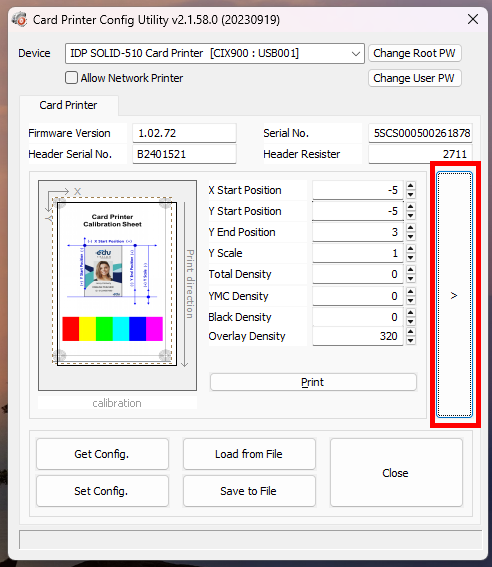
- Select the right arrow to expand the Printer Config
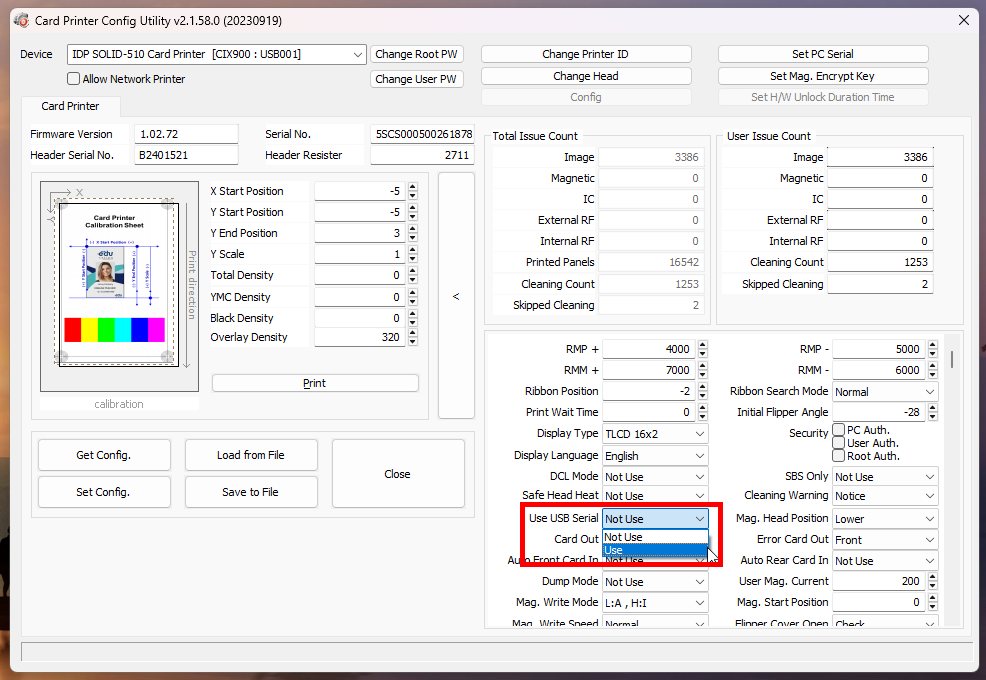
- In the right menu, locate 'Use USB Serial' and set it to Use
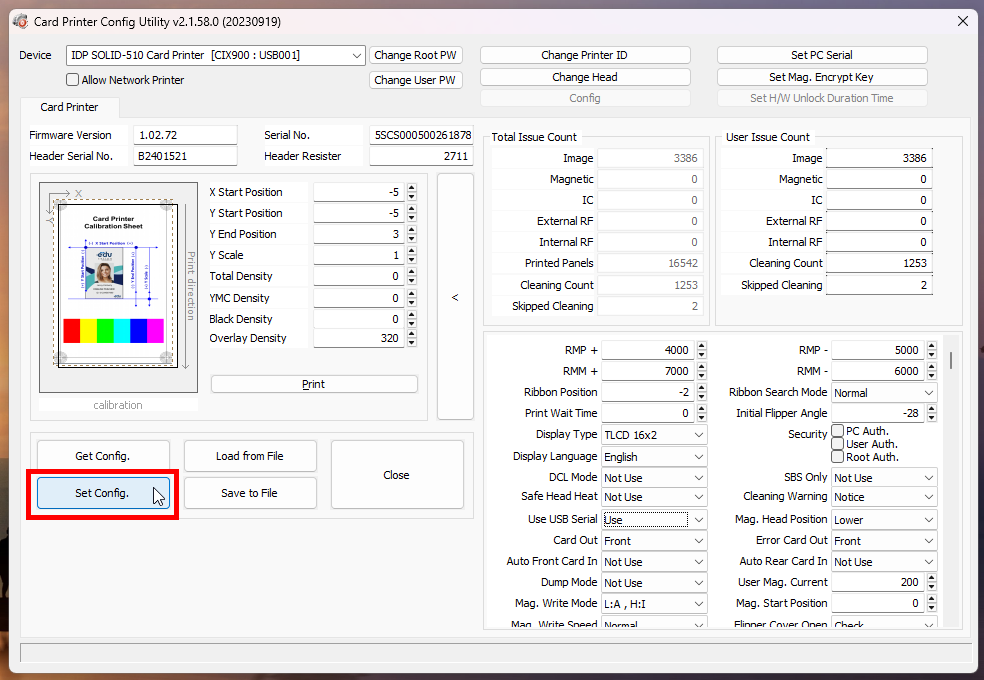
- Select Set Config and wait for the Printer Config to finish loading
- Close the Printer Config
- Restart your printer by using the back switch to turn it off. Wait a few seconds and turn your printer on again
Video Demonstration
Was this article helpful?
That’s Great!
Thank you for your feedback
Sorry! We couldn't be helpful
Thank you for your feedback
Feedback sent
We appreciate your effort and will try to fix the article