These are the instructions to resolve sizing printing issues with DYMO-450:
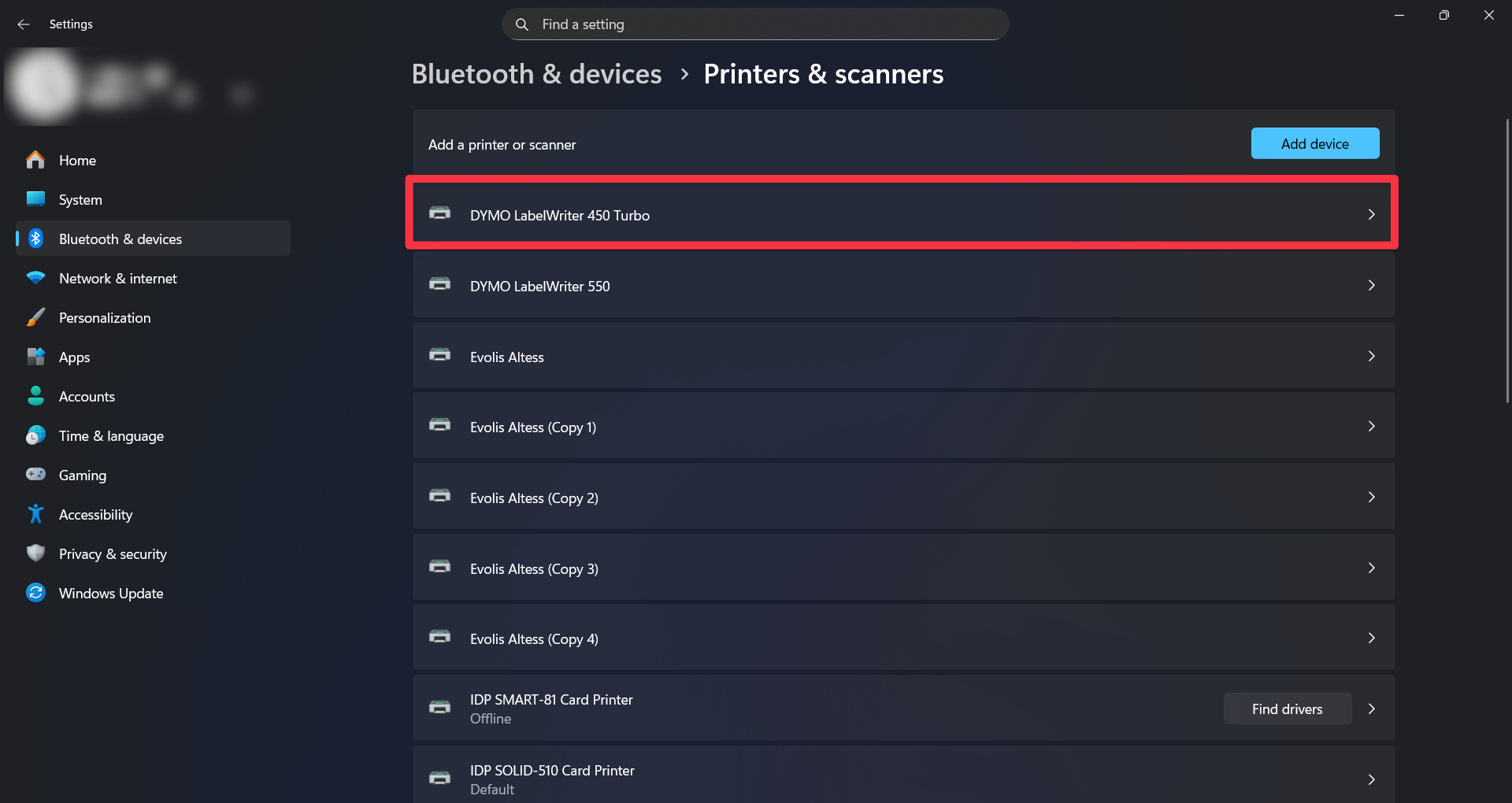
- Go to Settings → Printers & Scanners → Click DYMO LabelWriter 450 Turbo
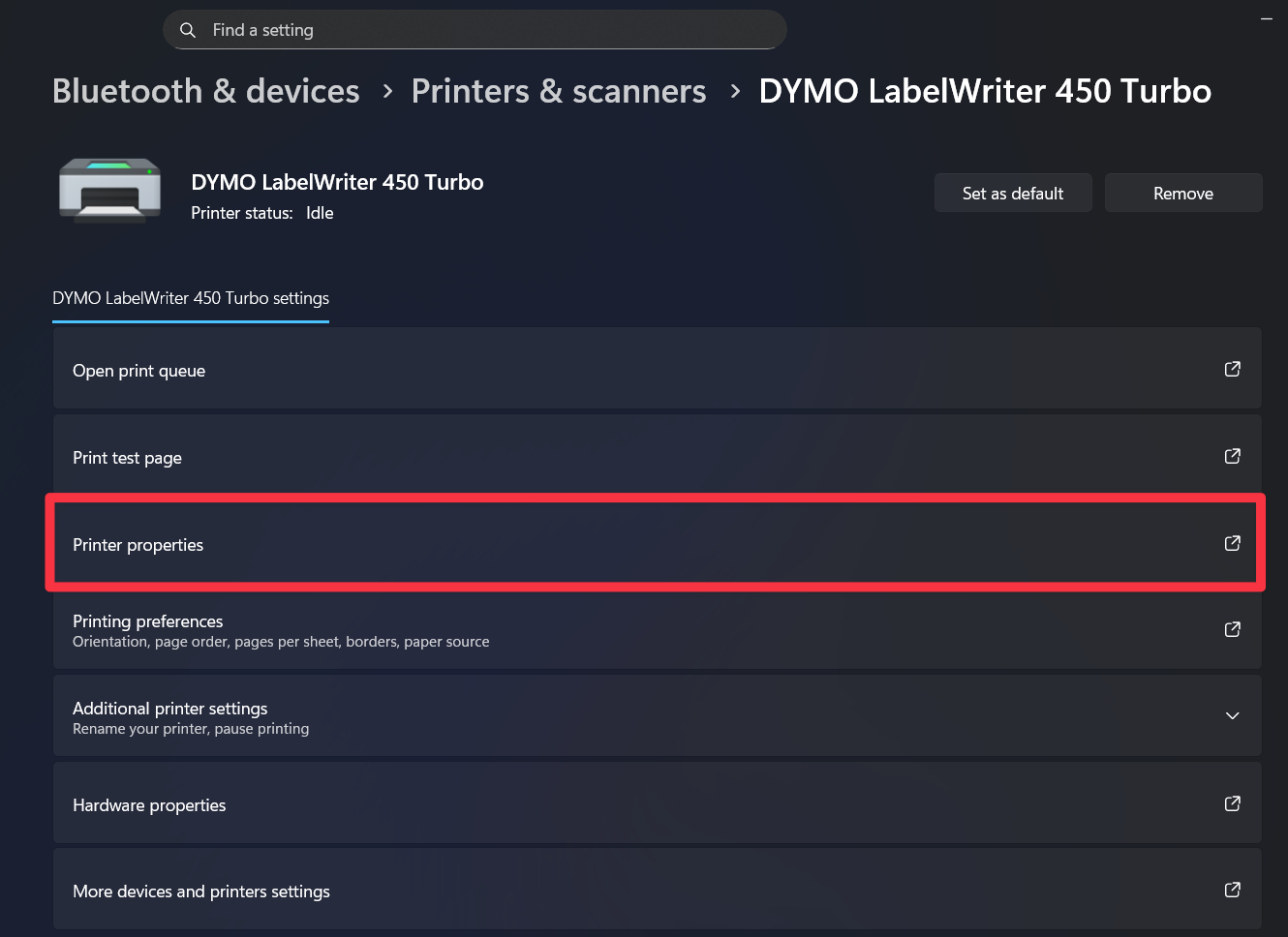
- Click “Printer properties”
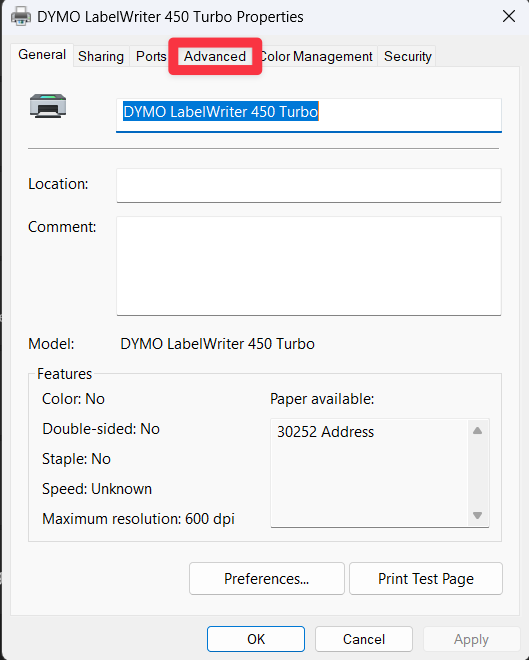
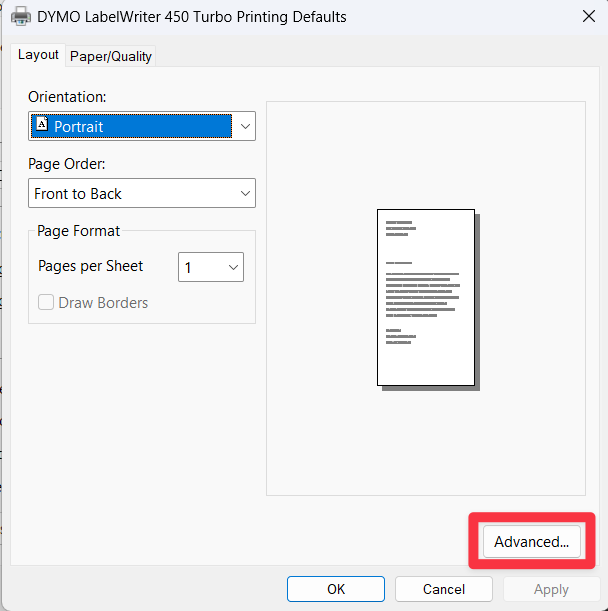
- Click “Advanced”
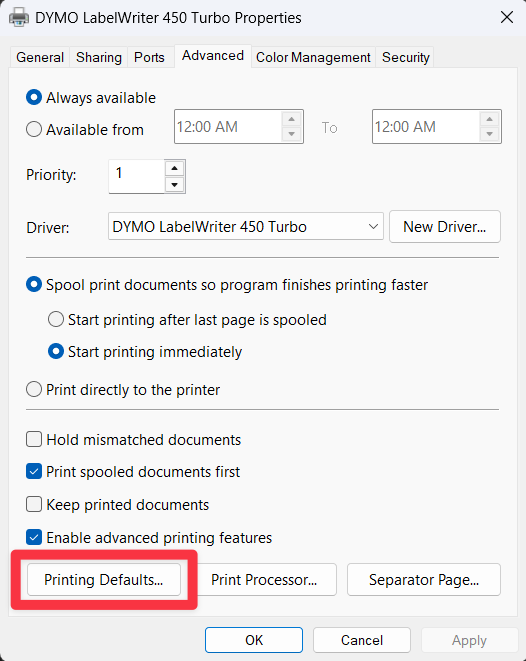
- “Printing Defaults”
- Click “Advanced”
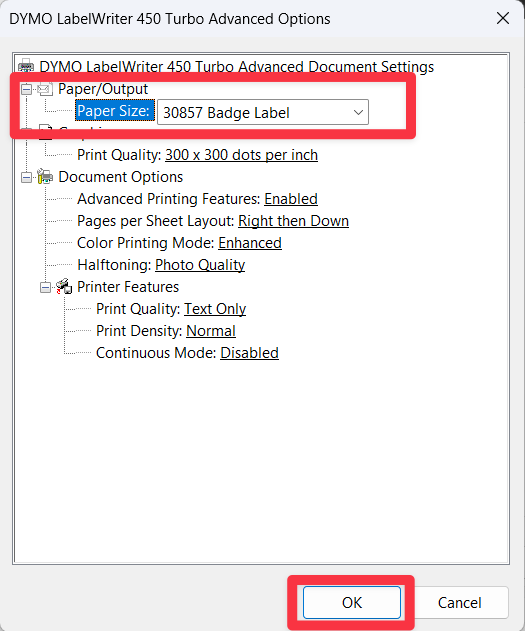
- Change “Paper Size” to “30857 Badge Label” → Click “Ok”
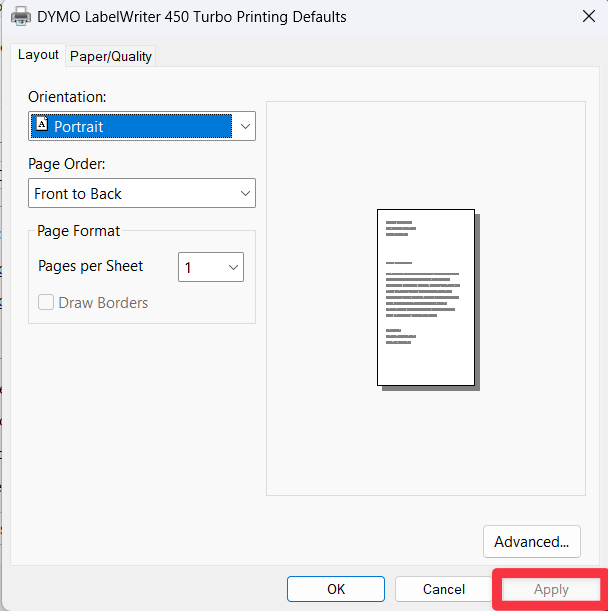
- Click “Apply”
Was this article helpful?
That’s Great!
Thank you for your feedback
Sorry! We couldn't be helpful
Thank you for your feedback
Feedback sent
We appreciate your effort and will try to fix the article